
Knowing how to reset Ring doorbell hardware can save you a call to support. A reset fixes a doorbell that will not reconnect after a router change, gets rid of strange glitches, and wipes the device clean before you sell it or move house. The whole job usually takes less than five minutes once you know where the setup button is.
This guide explains the difference between a simple restart, a Wi-Fi reconnect and a full factory reset, where to find the reset button on different Ring doorbells, what the light patterns mean, and what to do after the reset so your doorbell is back online quickly.
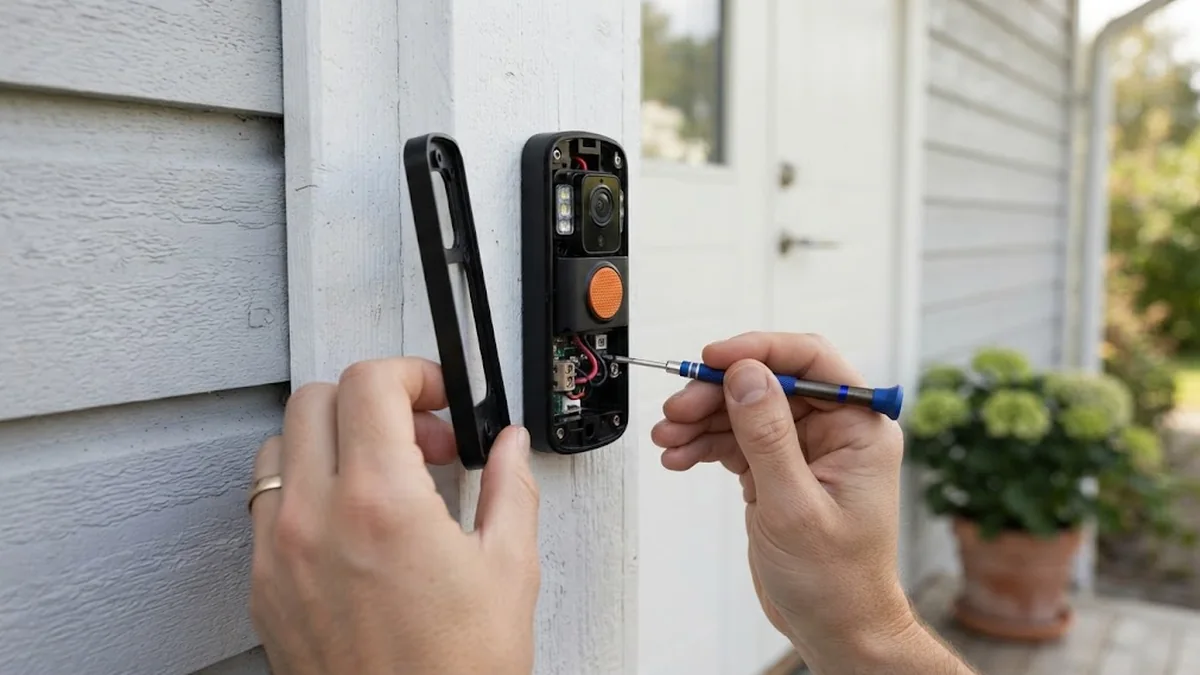
Table of Contents
- Restart, Reconnect or Factory Reset?
- Before You Start
- How to Reset Ring Doorbell Models Step by Step
- Where Is the Reset Button on My Ring Doorbell?
- How to Reconnect a Ring Doorbell to New Wi-Fi Without a Reset
- Ring Doorbell Light Patterns During a Reset
- What to Do After Resetting Your Ring Doorbell
- Why Won’t My Ring Doorbell Reset?
- Resetting Before You Sell or Give Away Your Doorbell
- Check Device Health Before You Reset
- Battery vs Wired Ring Doorbells: Reset Differences
- What Happens to Your Subscription and Recordings?
- How to Avoid Needing Another Reset
- Moving House With a Ring Doorbell
- Use Shared Users Instead of Resetting
- Frequently Asked Questions
- Final Thoughts
Restart, Reconnect or Factory Reset?
Not every problem needs a full reset. Start with the lightest fix that matches your situation:
After a reset, you may also want to customize your Ring doorbell sound and chime settings.
| What you need | What to do | What you lose |
|---|---|---|
| Doorbell frozen or slow | Restart it from the Ring app (Device Health) or briefly cut power | Nothing |
| New router or Wi-Fi password | Use Change Wi-Fi Network in the app | Nothing |
| Ongoing glitches, selling or moving | Factory reset with the setup button | All device settings and its link to your account |
A factory reset returns the doorbell to its out of the box state. Your Ring account, subscription plan and other devices are not affected, but the doorbell itself forgets its settings, motion zones and Wi-Fi details. Save any recordings you want before you remove a device from your account, because deleting it can delete its event history too.
Before You Start
- Grab the Ring screwdriver (or a Torx T15) for the security screw at the bottom of the doorbell.
- Have your Wi-Fi password ready.
- Open the Ring app and stand near the doorbell, with your phone’s Bluetooth and location turned on.
- Charge the battery if you have a battery model. A nearly empty battery can stop the reset from finishing. Ring’s battery doorbell guide shows how to remove and charge each battery type.
How to Reset Ring Doorbell Models Step by Step
Every Ring doorbell has a small setup button, usually orange or black. It is hidden so that nobody outside your door can reset the device. The basic process is the same on every model:
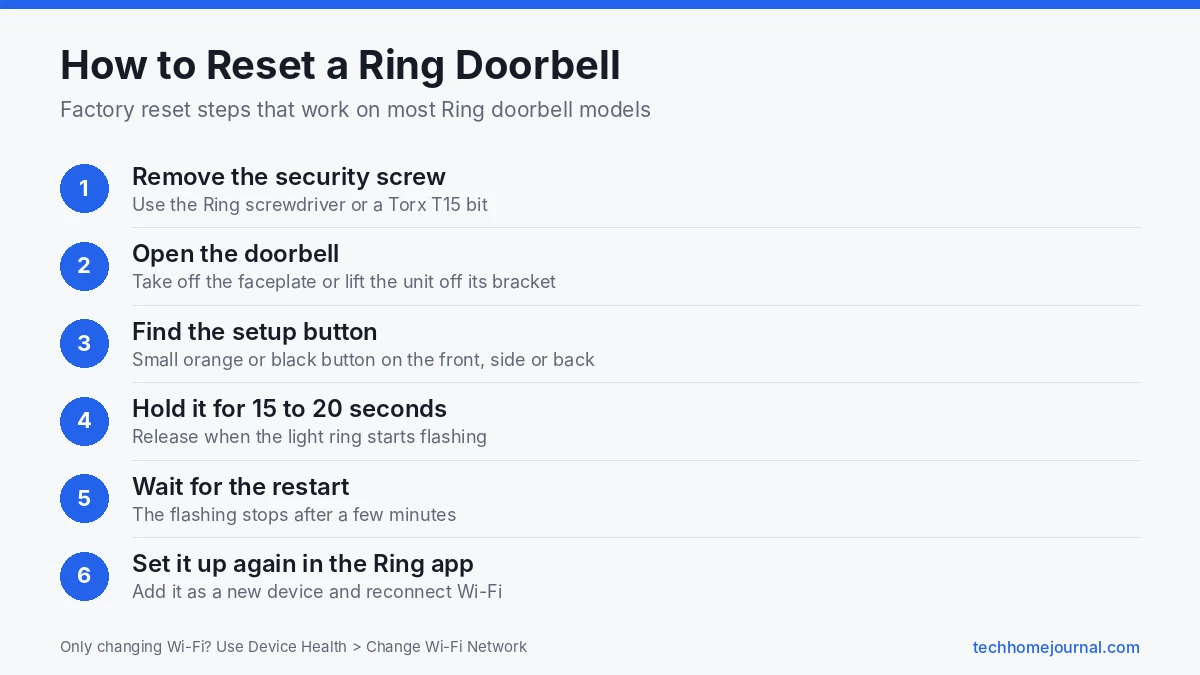
- Remove the security screw at the bottom of the doorbell.
- Take off the faceplate or lift the doorbell off its bracket to reach the setup button.
- Press and hold the setup button for about 15 to 20 seconds.
- Release it. The light ring on the front flashes, which means the doorbell is resetting.
- Wait a few minutes until the flashing stops and the doorbell restarts.
- Set it up again in the Ring app as a new device.
How-To Geek’s Ring reset walkthrough suggests holding the button for 20 seconds if the light does not flash after 15.
Where Is the Reset Button on My Ring Doorbell?
The setup button moves around between models. Use this as a guide, and check the setup guide in the box if your model looks different:
- Battery models with a removable battery pack (for example, Video Doorbell 3, 4 and Battery Doorbell Plus): take off the faceplate. The setup button is on the front of the unit, next to the battery.
- Battery models with a built-in battery and many Wired models: lift the doorbell off its mounting bracket. The setup button is on the back of the device.
- Wired Doorbell Pro and Wired Doorbell Plus: remove the faceplate. The setup button is usually on the side or front of the doorbell body.
- Older Video Doorbell (1st and 2nd generation): the orange setup button is on the back or under the faceplate, depending on the version.
If you cannot find it, open the Ring app, tap your doorbell, and look at the model name under Device Health. Then search that model name on Ring Help for a picture of the button.
How to Reconnect a Ring Doorbell to New Wi-Fi Without a Reset
If you changed your router or password, you usually do not need a full factory reset:
- Open the Ring app and tap your doorbell.
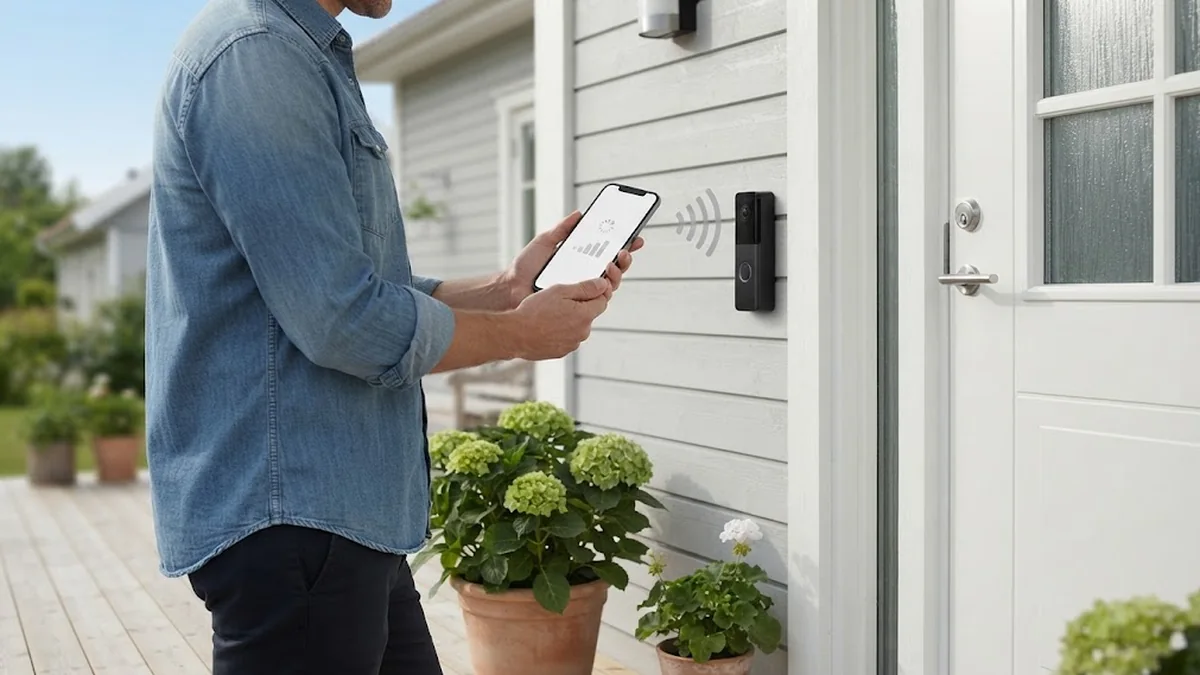
- Tap Device Health, then Change Wi-Fi Network (sometimes called Reconnect to Wi-Fi).
- When the app asks, press the setup button once. The light ring spins to show setup mode.
- Pick your network, enter the password and wait for the confirmation.
Your motion settings, history and chime settings stay as they were. If the doorbell keeps dropping the connection after this, the signal at your front door may be too weak. A Ring Chime Pro or a mesh node closer to the entrance often fixes it; our home network setup guide explains how to improve coverage.
Ring Doorbell Light Patterns During a Reset
The light ring tells you what is happening:
- Flashing white or blue after you hold the button: the reset is in progress.
- Spinning white: the doorbell is in setup mode and waiting for the app.
- Spinning blue: the doorbell is connecting or booting up.
- Solid or flashing red, or no light at all: usually a power problem. Charge the battery or check the transformer on wired models.
Patterns vary a little between generations, but if the light never changes after holding the button for 20 seconds, the device is probably not getting enough power.
What to Do After Resetting Your Ring Doorbell
- Set it up as a new device in the Ring app and scan the QR code on the back of the doorbell or in the manual.
- Choose the right chime type (mechanical, digital or none) if your doorbell is wired to an indoor chime. Our doorbell chime guide explains the difference.
- Redraw motion zones and set motion sensitivity.
- Re-link Alexa or other services if you use them.
- Check your plan. Video history needs a Ring Home subscription. If you want to avoid monthly fees, compare options in our guide to a doorbell camera with no subscription.
- Turn on two-step verification. Ring explains its account protections on its privacy page.
Why Won’t My Ring Doorbell Reset?
- Low battery. Charge it fully and try again.
- Not enough power on wired models. Ring’s hardwiring guidelines list the minimum transformer voltage for each model; an old transformer can cause endless reboots. See our doorbell transformer guide.
- Wrong button. Some models have a separate battery release latch. Make sure you are holding the setup button.
- Not holding long enough. Count a full 20 seconds.
- Faulty unit. If the light never responds with good power, contact Ring support about a replacement.
Resetting Before You Sell or Give Away Your Doorbell
To hand over a Ring doorbell safely:
- Download any recordings you want to keep.
- In the Ring app, open the doorbell’s settings and remove the device from your account.
- Factory reset the doorbell with the setup button.
- Give the new owner the security screwdriver and any spare screws.
This stops the device from showing up in your account and lets the new owner set it up as their own.
Check Device Health Before You Reset
Many “reset” problems are really Wi-Fi problems. Before wiping your doorbell, open the Ring app, select the doorbell, then Device Health. Look at:
- Signal strength (RSSI): a number closer to zero is better. Ring generally treats about -60 or better as a good signal. If yours is lower, the doorbell will struggle no matter how many times you reset it.
- Network name: confirm it’s connected to the network you expect, not an old one or a guest network.
- Battery level or power: on battery models, a low battery causes slow live view and missed events. On wired models, check that power shows as wired.
- Firmware: it should say “Up to date”. Devices update automatically when they have a stable connection.
If the signal is weak, move the router closer, add a mesh node near the front door, or plug in a Ring Chime Pro, which also extends Wi-Fi for Ring devices.
Battery vs Wired Ring Doorbells: Reset Differences
The reset itself is similar on most models, but there are a few practical differences:
| Point | Battery models | Wired models |
|---|---|---|
| Access to the button | Usually remove the battery or faceplate first | Usually remove the faceplate; some need the unit taken off the wall |
| Power during reset | Battery must be charged | Stable wired power needed; low transformer voltage causes failed resets |
| Common reason to reset | New Wi-Fi network, setup errors | New Wi-Fi, power problems after electrical work |
| After reset | Charge fully before re-mounting | Check chime settings in the app |
On wired doorbells, a reset won’t fix a power supply problem. If the doorbell keeps restarting, check the transformer voltage. Our doorbell transformer guide explains what voltage each type of video doorbell needs.
What Happens to Your Subscription and Recordings?
A factory reset clears the doorbell’s Wi-Fi details and settings stored on the device. It doesn’t cancel your Ring subscription (now called Ring Home plans) and doesn’t delete recordings already saved in your account.
- If you set the doorbell up again on the same account and location, your plan and video history carry on as before.
- If you remove the device from your account, its event history is no longer accessible from that device, so download any clips you want to keep first.
- If you’re passing the doorbell on, remove it from your account so the new owner can register it, and cancel or move your plan if you no longer need it.
How to Avoid Needing Another Reset
- Keep the Wi-Fi name and password the same when you change routers. Ring devices can then reconnect without setup.
- Use the “Change Wi-Fi network” option in Device Health instead of a factory reset when your network changes.
- Charge battery models before they drop below about 20%, especially in winter.
- Keep your Ring account secure with two-step verification, so you never need to reset a device after an account problem.
- Check Device Health once a month for signal and battery warnings.
For more on securing a doorbell, see our best smart doorbell guide.
Moving House With a Ring Doorbell
Moving is one of the most common reasons to reset a Ring doorbell. The right steps depend on whether the doorbell goes with you or stays behind.
If you are taking it with you:
- Download any clips you want to keep from the old address.
- Remove the doorbell from the old location in the Ring app.
- Take it off the wall and fit a plain doorbell button or cover plate so the old wires are not left exposed.
- At the new home, create a new location in the app, then set the doorbell up there.
If you are leaving it behind:
- Remove the device from your Ring account so the new owner can register it.
- Do a factory reset so your Wi-Fi details are cleared.
- Leave the mounting screws and any security screwdriver for the new owner.
A Ring doorbell can only be registered to one account at a time, so skipping the “remove device” step is the main reason new owners can’t set one up.
Use Shared Users Instead of Resetting
If someone else in the household just needs access, don’t reset the doorbell or share your password. Add them as a Shared User in the Ring app. They get live view, alerts and recordings on their own phone, and you can remove their access at any time without touching the doorbell. Shared Users can’t change account-level settings or remove the device, which keeps your setup safe.
Frequently Asked Questions
How long do you hold the button to reset a Ring doorbell?
About 15 to 20 seconds. Release it when the light ring starts flashing.
Does resetting a Ring doorbell delete my videos?
The factory reset itself clears the device’s settings. Removing the doorbell from your Ring account can delete its saved recordings, so download any clips you need first.
Can I reset a Ring doorbell from the app?
Not fully. The app can restart the doorbell and change its Wi-Fi network, but a true factory reset needs the physical setup button.
Do I need to reset my Ring doorbell if I change Wi-Fi?
No. Use Device Health and Change Wi-Fi Network in the app, then press the setup button once when asked.
Why is my Ring doorbell flashing white after a reset?
A spinning or flashing white light usually means the doorbell is in setup mode and waiting for you to finish setup in the Ring app.
Will a reset fix a Ring doorbell that keeps going offline?
Sometimes, but weak Wi-Fi is a more common cause. Check the signal strength (RSSI) under Device Health before resetting.
Why does my Ring doorbell keep disconnecting after a reset?
A reset doesn’t improve Wi-Fi signal. If Device Health shows a weak signal, move the router closer, add a mesh node or use a Ring Chime Pro. On wired models, also check that the transformer supplies enough voltage.
Can I reset a Ring doorbell without removing it from the wall?
On many models you only need to remove the faceplate or battery to reach the button. Some wired models need the unit taken off its mounting bracket. Check the model-specific steps above before you start.
Will resetting my Ring doorbell remove motion zones and settings?
A factory reset clears settings stored on the device, and you’ll go through setup again. If you set it up on the same account and location, some app settings may carry over, but check motion zones, privacy zones, motion sensitivity and chime settings afterwards.
How do I know the reset worked?
The light usually flashes in a pattern while the doorbell restarts, then it enters setup mode, often shown by a spinning white light. Once it appears in the Ring app as ready to set up, the reset is complete.
Do I need the Ring app to reset my doorbell?
No. The factory reset uses the physical button on the doorbell. You need the app afterwards to set it up again.
Final Thoughts
Once you know how to reset Ring doorbell models, the process is the same nearly every time: remove the security screw, find the setup button, hold it for 15 to 20 seconds and set the doorbell up again in the app. For a new router, skip the reset and use Change Wi-Fi Network instead. If you are thinking about upgrading, our guide to the best smart doorbells and our Ring Floodlight Camera guide are good places to look next.