
Your Ring doorbell sound comes from more places than you might think. There is the tone your phone plays when someone presses the button, the tone your Ring Chime plays inside the house, the old wired chime in your hallway, and the voice announcement on an Echo speaker. Each one is set up in a different spot, which is why so many people get stuck trying to change it.
This guide shows you how to change the Ring doorbell sound in each place, how to pick different tones for rings and motion, how to make the chime louder or quieter, and how to fix a doorbell that is silent indoors. All menu names match the current Ring app.
Table of Contents
- Where Ring Doorbell Sounds Come From
- How to Change the Ring Doorbell Sound on Your Phone
- How to Change the Ring Chime Tone
- How to Change Ring Chime Volume
- Using Your Existing Wired Doorbell Chime
- Ring Doorbell Sound on Alexa Devices
- Ring Doorbell Not Making a Sound Inside? Try These Fixes
- Can You Change the Sound Visitors Hear?
- Ring Chime vs Chime Pro: Which Plug-In Chime?
- Where to Place a Ring Chime
- Phone Notification Settings That Affect Ring Sounds
- Quiet Hours: Snooze, Modes and Do Not Disturb
- Fixing a Buzzing or Humming Wired Chime
- Doorbell Alerts for People Who Are Hard of Hearing
- Seasonal and Holiday Chime Tones
- Frequently Asked Questions
- Final Thoughts
Where Ring Doorbell Sounds Come From
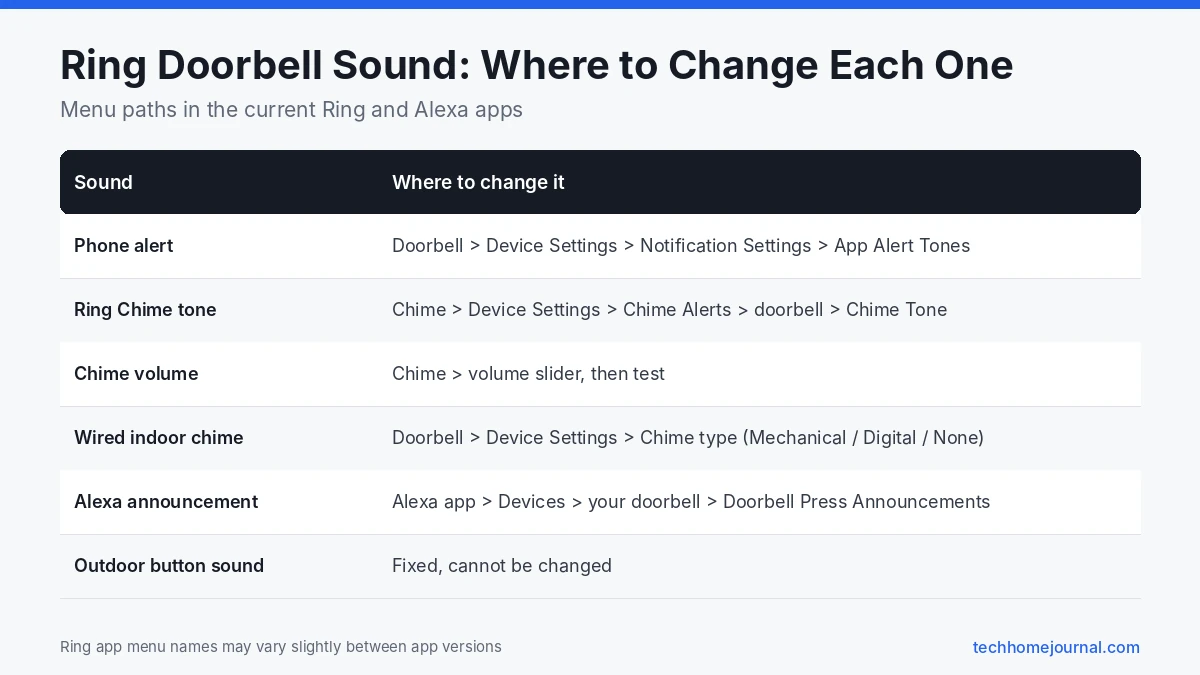
Before you start tapping through menus, work out which sound you want to change:
| Sound | Where you hear it | Can you change it? | Where to change it |
|---|---|---|---|
| App alert tone | Your phone | Yes | Ring app: doorbell Device Settings |
| Ring Chime tone | Plug-in Chime, Chime Plus or Chime Pro | Yes, dozens of tones | Ring app: Chime settings |
| Existing indoor chime | Wired mechanical or digital chime | Tone is set by the chime itself | Ring app: Chime type setting only |
| Alexa announcement | Echo speakers and displays | Yes, on or off | Alexa app |
| Doorbell button sound | Outside, for visitors | No | Fixed by Ring |
As TechRadar’s guide to Ring doorbell sounds points out, the little chime visitors hear outside when they press the button cannot be changed.
How to Change the Ring Doorbell Sound on Your Phone
This changes the alert your phone plays when someone rings the doorbell:
- Open the Ring app and tap the menu (three lines).
- Tap Devices, then your doorbell.
- Tap Device Settings, then Notification Settings.
- Tap App Alert Tones.
- Choose a tone for rings (and for motion, if you want a different one).
- Tap back to save.
Make sure your phone is not on silent or Do Not Disturb, or you will not hear any tone. On iPhone, you can also allow Ring alerts as Time Sensitive so they break through Focus modes.
How to Change the Ring Chime Tone
A Ring Chime is a small speaker that plugs into an outlet and plays a sound when your doorbell is pressed. Ring’s help article on linking a doorbell to your Chime lists these steps:
- Tap the menu, then Devices.
- Tap your Chime, Chime Plus or Chime Pro.
- Tap Device Settings, then Chime Alerts.
- Tap the doorbell you want to change.
- Tap Chime Tone, then pick a tone under the event type (Rings or Motion Detected).
- Tap back, then Save.
Ring offers a long list of tones, from classic ding dong sounds to modern chimes and seasonal options such as spooky Halloween sounds. Tap a tone to preview it before saving.
Tip: Wait for any tone to finish playing before you save. Ring notes that changing settings while a tone is still playing can make your choice revert to the default.
Different sounds for front and back doors
If you have more than one Ring doorbell or camera, give each one its own Chime tone. You will know which door has a visitor without looking at your phone. You can also set a separate tone for motion alerts, or turn motion sounds off completely so the Chime only plays for real visitors.
Snooze the Chime
Ring’s Chime Snooze silences the Chime for a set time, which is handy when a baby is sleeping. Open your Chime’s Device Settings, tap Chime Snooze, pick a duration and tap Save.
How to Change Ring Chime Volume
Each Chime has its own volume slider:
- Open the Ring app and tap your Chime.
- Go to the audio or volume setting.
- Move the slider and use the test button to hear the result.
If the Chime is still too quiet, move it closer to the rooms you use most, or add a second Chime upstairs. Ring’s newer Chime Plus also works as a Wi-Fi extender for doorbells far from the router. Our guide to doorbell chimes compares plug-in and wired options.
Using Your Existing Wired Doorbell Chime
Many wired Ring doorbells can ring the mechanical or digital chime already in your hallway. You cannot change its tone from the Ring app because the tone comes from the chime box itself, but you can tell Ring what type of chime you have:
- In the Ring app, tap your doorbell.
- Tap Device Settings, then Chime Settings (sometimes listed under General Settings).
- Choose Mechanical, Digital or None.
- For digital chimes, set the ring duration if the option appears.
Picking the wrong type is the most common reason for a buzzing, humming or silent indoor chime. If you want a different tone from a wired digital chime, many digital chime units have a tune selector button or switch inside the cover.
Ring’s hardwiring guidelines list which models work with existing chimes and which need extras like the Pro Power Kit. Low transformer voltage can also stop the chime from ringing; our doorbell transformer guide explains how to check it.

Ring Doorbell Sound on Alexa Devices
If you have Echo speakers or an Echo Show, Alexa can announce visitors, which is useful in rooms where you cannot hear a Chime:
- Open the Alexa app and link the Ring skill if you have not already.
- Go to Devices, then Cameras or Doorbells, and select your Ring doorbell.
- Turn on Doorbell Press Announcements and pick which Echo devices should announce.
An Echo Show can also bring up a live view of the front door. If you are shopping for one, see our guides to the best smart displays and the best smart speakers.
Ring Doorbell Not Making a Sound Inside? Try These Fixes
- No Chime linked. Open your doorbell’s Linked Chimes setting and make sure Rings is turned on.
- Chime Snooze is active. Turn it off in the Chime’s settings.
- Wrong chime type for wired doorbells. Switch between Mechanical and Digital and test.
- Chime offline. Unplug the Ring Chime for 10 seconds and plug it back in. Check its Wi-Fi signal.
- Phone settings. Check that Ring notifications are allowed and your phone is not muted.
- Low power on wired doorbells. A weak transformer can stop the indoor chime working.
Can You Change the Sound Visitors Hear?
No. The short tone visitors hear outside when they press the button is built into the doorbell and cannot be changed or turned off on most models. What you can control is everything that plays inside your home and on your phone.
Ring Chime vs Chime Pro: Which Plug-In Chime?
If you don’t have a working wired chime, a Ring plug-in chime is the easiest way to hear your doorbell inside. Ring sells two main versions:
| Feature | Ring Chime | Ring Chime Pro |
|---|---|---|
| Plays doorbell and motion tones | Yes | Yes |
| Adjustable volume and tones in the app | Yes | Yes |
| Extends Wi-Fi to Ring devices | No | Yes |
| Night light | Model dependent | Yes, on recent models |
| Best for | Homes with good Wi-Fi at the door | Homes where the doorbell has a weak signal |
If your doorbell already shows a strong Wi-Fi signal in Device Health, the standard Chime is enough. If live view is slow or the doorbell drops offline, the Chime Pro solves two problems at once. Check current models on Ring’s accessories page, as Ring updates the line from time to time.
Where to Place a Ring Chime
A plug-in chime is only useful if you can hear it. Good spots include:
- A hallway socket in the middle of the home, so the sound carries upstairs and downstairs.
- Near the room you use most, such as the living room or a home office.
- For the Chime Pro, roughly halfway between the router and the front door, where it still gets a strong signal from the router.
- One chime per floor in larger homes. You can link several chimes to the same doorbell.
Avoid sockets hidden behind furniture or curtains, which muffle the sound.
Phone Notification Settings That Affect Ring Sounds
If the Ring app plays the right tone but you still miss rings on your phone, the cause is often your phone’s own settings:
- iPhone: go to Settings, Notifications, Ring and make sure Sounds and Allow Notifications are on. Check that a Focus mode, such as Sleep or Work, isn’t silencing Ring.
- Android: open Settings, Apps, Ring, Notifications. Android splits alerts into categories, so check the doorbell ring category separately from motion alerts and set its sound and importance.
- Battery savers: aggressive battery optimisation on some Android phones delays notifications. Exclude the Ring app from battery optimisation.
- Smartwatches: rings can be mirrored to a watch, which helps if your phone is often on silent.
Quiet Hours: Snooze, Modes and Do Not Disturb
Sometimes you want the opposite, fewer sounds. Ring gives you a few tools:
- Chime snooze: silences the indoor chime for a set time, useful when a baby is sleeping. You still get phone alerts.
- Motion snooze: pauses motion alerts while you have guests or work is being done outside.
- Modes: choose which devices send alerts in Home, Away and Disarmed modes.
- Phone Do Not Disturb: quiet your phone overnight while the indoor chime still plays.
For a calm Scandinavian-style home, a soft chime tone at medium volume in the hallway is often enough during the day, with chime snooze switched on during naps.
Fixing a Buzzing or Humming Wired Chime
If you connected a Ring doorbell to your existing wired chime and now hear buzzing, humming or a weak “ding”, the chime and doorbell don’t agree on power. Common causes:
- Wrong chime type selected: in the Ring app, open Device Settings and make sure the chime type is set to Mechanical, Digital or None to match what you have.
- Missing power kit: some wired Ring models need a power kit installed at the chime box. Without it, the chime can hum or the doorbell may not get stable power.
- Low transformer voltage: an old transformer may not supply enough power for both the chime and a video doorbell. Our doorbell transformer guide explains how to check and upgrade it.
- Loose wires: a loose terminal at the chime or doorbell can cause noise. Turn off the power and tighten each screw.
If the chime is digital (it plays a melody) and keeps buzzing, setting the chime type to None and using a Ring plug-in chime instead is often the simplest fix.
Doorbell Alerts for People Who Are Hard of Hearing
A sound isn’t always the best alert. You can make your Ring doorbell easier to notice:
- Set a Ring Chime to maximum volume and use the most distinctive tone.
- Create an Alexa routine that flashes a smart bulb in the living room when someone presses the doorbell.
- Use an Echo Show, which displays the doorbell video on screen when someone rings.
- Turn on vibration and smartwatch alerts on your phone.
Our guide to the best smart light bulbs covers bulbs that work well with Alexa routines.
Seasonal and Holiday Chime Tones
Ring often adds seasonal tones to the Ring Chime around holidays such as Halloween and Christmas. They appear in the chime’s tone list in the Ring app when available. Switching to a festive tone is a small touch that guests notice, and you can switch back to your usual tone in a few seconds once the season is over.
Frequently Asked Questions
How do I change my Ring doorbell sound?
For your phone, use Device Settings, Notification Settings and App Alert Tones on your doorbell. For a Ring Chime, open the Chime, go to Device Settings, Chime Alerts, choose the doorbell and pick a new Chime Tone.
Can I use a custom sound on my Ring doorbell?
Ring does not support uploading your own audio files. You can choose from the built-in tones, which include seasonal options at certain times of year.
Why is my Ring Chime not ringing?
The doorbell may not be linked, Chime Snooze may be on, or the Chime may be offline. Check Linked Chimes in your doorbell’s settings first.
How do I make my Ring doorbell louder inside the house?
Turn up the Chime volume in the Ring app, move the Chime to a more central spot, or add a second Chime. Alexa announcements on Echo devices also help.
Can I turn off the Ring doorbell sound at night?
Yes. Use Chime Snooze for a set time, or set your phone’s Do Not Disturb schedule. Note that you may miss real visitors while it is on.
Does my existing wired chime work with a Ring doorbell?
Most wired and battery Ring doorbells work with mechanical and digital chimes, but some models, such as the Wired Doorbell 2K Plus, need a Ring Chime instead.
Can I have more than one Ring Chime?
Yes. You can link several Ring Chimes to one doorbell and set each chime’s tone and volume separately in the Ring app.
Does the Ring Chime Pro improve video quality?
It can, if your doorbell has weak Wi-Fi. The Chime Pro extends the network for Ring devices, so a stronger signal can mean faster live view and fewer dropped connections.
Why does my old doorbell chime buzz after installing Ring?
Usually the chime type in the Ring app doesn’t match your chime, the required power kit isn’t installed, or the transformer is too weak. Check those three things in that order.
Can visitors hear the Ring doorbell sound outside?
Most Ring doorbells play a short tone from the doorbell’s own speaker when the button is pressed, so visitors know it worked. The indoor chime tone and your phone sound are set separately in the app.
Can I change the Ring sound on an Echo device?
Yes. With the Ring skill linked, Echo devices can announce the doorbell. You can change announcement settings in the Alexa app under the doorbell device.
Final Thoughts
Changing your Ring doorbell sound is easy once you know which sound you are changing. Use App Alert Tones for your phone, Chime Tone for a Ring Chime, the chime type setting for your existing wired chime, and the Alexa app for Echo announcements. Give each door its own tone and you will always know who is knocking. For more ideas, see our guide to the best smart doorbells and our tips for choosing a doorbell camera with no subscription.