
Nearly 70% of home Wi-Fi complaints trace back to a single root cause: poor initial planning. Not bad hardware. Not the ISP. Just a network that was plugged in and forgotten.
Free tool: Use our free Internet Speed Calculator to find the internet speed your household actually needs.
A proper home network setup isn’t complicated, but it does require a deliberate sequence. Get the order right and you end up with fast, stable coverage across every room. Get it wrong and you spend years rebooting the router at midnight.
Table of Contents
- Assess Your Space and Speed Requirements
- Choose the Right Router Architecture
- Essential Hardware You Actually Need
- Running the Physical Layer First
- Router Configuration Step by Step
- Securing Your Network in 2026
- Optimizing Wi-Fi Performance
- Troubleshooting Common Problems
- Mesh Wi-Fi Setup Tips for 2026
- Mesh Wi-Fi Maintenance Tips
- Building a Network That Stays Fast
- Frequently Asked Questions
Assess Your Space and Speed Requirements
Start with square footage and wall count – not with a shopping cart.
A 1,200 sq ft apartment with open-plan living needs a completely different solution than a 3,500 sq ft two-story house with plaster walls and a detached garage. Plaster and brick attenuate a 5 GHz signal by 15-20 dB per wall, which effectively halves your usable range compared to standard drywall.
Count your connected devices honestly. The average US household in 2026 runs 22 to 30 connected devices simultaneously – smart TVs, phones, tablets, thermostats, security cameras, and gaming consoles. Each device draws bandwidth. A 4K stream needs roughly 25 Mbps; a video call needs 3-5 Mbps per participant. Add those up before you decide whether your current 200 Mbps plan is actually enough.
Map out dead zones before buying anything. Walk your home with a free app like NetSpot and note where signal strength drops below -70 dBm. That map drives every hardware decision that follows.
Choose the Right Router Architecture
Single router, mesh system, or wired backbone – this decision shapes everything downstream.
A single router works well for spaces under 1,500 sq ft with fewer than 15 devices. Asus routers like the RT-AX88U cover up to 3,000 sq ft under ideal conditions, but real-world performance in a cluttered home typically lands 30-40% lower. Budget: $150-$250 for a capable single unit.
Mesh systems shine in larger homes or multi-story layouts. Eero, Google Nest WiFi Pro, and TP-Link Deco all use a dedicated backhaul radio so the nodes talk to each other without stealing bandwidth from your devices. A 3-node mesh setup typically covers 5,000-6,000 sq ft and handles 50+ devices without breaking a sweat. Expect to spend $250-$500 for a solid tri-band mesh kit.
For tech enthusiasts who want maximum throughput, a wired backbone changes the equation entirely. Running Ethernet between nodes eliminates backhaul congestion and can push gigabit speeds to every room. It takes more effort upfront, but the performance ceiling is genuinely higher – latency drops to under 2 ms between nodes versus 10-20 ms on wireless backhaul.
My recommendation: if you can run even one Ethernet cable to a secondary node, do it. The improvement is immediate and measurable.
Essential Hardware You Actually Need
Skip the accessories marketed to beginners. Here is what a properly built home network actually requires:
- Router or mesh system – Wi-Fi 6E (802.11ax) minimum in 2026; Wi-Fi 7 if your budget allows and you have Wi-Fi 7 client devices
- Modem (if your ISP uses cable or DSL) – buy your own instead of renting; a Motorola MB8611 costs $150 and pays for itself versus a $15/month rental fee within 10 months
- Unmanaged gigabit switch – Netgear GS308 at $25-$35 for adding wired ports where needed
- Cat6 Ethernet cable – rated for 10 Gbps up to 55 meters; buy in bulk (100 ft for around $15)
- UPS (Uninterruptible Power Supply) – a small APC BE600M1 protects your router and modem during power blips and costs $60-$80
- Network cable tester – $15-$20; catches bad crimps before you seal the wall
One thing most guides skip: a label maker. Label every cable at both ends. You will thank yourself 18 months later when you need to trace a connection.
Running the Physical Layer First
Wiring comes before configuration. Always.
If you plan to run Ethernet to any rooms, do that work before you touch a router setting. Fishing cable through walls is messy and disruptive – you want it done once. Use Cat6 for all new runs; the price difference over Cat5e is negligible (roughly $0.05 per foot), but the headroom for future 2.5G or 10G devices is worth it.
Locate your main router as close to the center of your home as possible. Every 10 feet of additional distance from a Wi-Fi client costs roughly 1-2 dB of signal strength. Elevating the router 6-8 feet off the floor improves horizontal coverage noticeably – the signal propagates outward rather than straight down into the carpet.
For cable runs longer than 100 meters (328 feet), you hit the Cat6 spec limit. Use a network switch at that point to regenerate the signal rather than trying to push through on a single run. Keep patch cables short – under 3 feet – between wall plates and devices for the cleanest signal integrity.
Router Configuration Step by Step
Once hardware is in place, configuration follows a consistent sequence regardless of brand.
Connect your modem to the router’s WAN port using a short Ethernet patch cable. Power on the modem first, wait 60 seconds, then power on the router. Most modern routers auto-negotiate the connection type (DHCP, PPPoE, or static IP) within 90 seconds. If your ISP uses PPPoE, you will need the username and password from your ISP welcome letter.
Open the router admin panel – typically at `192.168.1.1` or `192.168.0.1` – and work through these settings in order:
- Change the default admin username and password immediately
- Set your SSID (network name) – avoid using your name or address in it
- Select WPA3 encryption; fall back to WPA2/WPA3 mixed mode only if you have older devices that cannot handle WPA3
- Enable the 6 GHz band if your router supports Wi-Fi 6E or Wi-Fi 7
- Set your DNS servers to something faster than your ISP default – Cloudflare’s 1.1.1.1 resolves most queries in under 14 ms
- Enable automatic firmware updates
- Disable WPS (Wi-Fi Protected Setup) – it has known vulnerabilities and is not needed on a properly configured network
- Set up a separate guest network for IoT devices and visitors
The whole process takes 20-30 minutes. Do not skip step 7.
Securing Your Network in 2026
Network security at home has moved well past “just use a strong password.”
The biggest shift in 2026 is VLAN segmentation for IoT devices. Your smart doorbell and your laptop should not share the same network segment. A compromised smart bulb – and yes, it happens – cannot reach your NAS drive or your work laptop if they sit on separate VLANs. Ubiquiti UniFi gear makes this approachable for enthusiasts; even some consumer mesh systems like Eero Pro now support basic network segmentation.
Enable your router’s built-in firewall and set inbound rules to block all unsolicited traffic. Check that UPnP (Universal Plug and Play) is disabled; it silently opens ports that attackers can find with automated scanners. Run a port scan against your external IP using ShieldsUP after setup – every port should show as “stealth,” not just closed.
Update firmware within 48 hours of any new release. Unpatched router firmware is the single most common entry point for home network intrusions in 2026.
Optimizing Wi-Fi Performance
Channel selection is where most home networks leave performance on the table.
The 2.4 GHz band has only 3 non-overlapping channels in the US: 1, 6, and 11. In a dense apartment building, every neighbor on channel 6 is competing with you. Use a Wi-Fi analyzer – WiFi Analyzer for Android is free and accurate – to find the least congested channel and set it manually rather than leaving the router on “auto.”
The 5 GHz band offers 24 non-overlapping channels in the US and carries significantly less interference. Push your high-bandwidth devices – gaming consoles, streaming boxes, laptops – to 5 GHz or 6 GHz. Reserve 2.4 GHz for IoT sensors and devices that only need occasional connectivity.
Band steering, available on most modern mesh systems, handles this automatically by nudging capable devices toward the faster band. It works well in practice – most users see a 15-25% throughput improvement just from enabling it.
QoS (Quality of Service) rules let you prioritize traffic types. Set video conferencing and gaming to high priority; background file syncing to low. The result is a noticeably smoother experience during peak household usage hours.
Troubleshooting Common Problems
Even a well-built network develops issues. Knowing the right diagnostic sequence saves hours.
Slow speeds on a specific device almost always point to the device’s Wi-Fi adapter or its distance from the router – not the router itself. Run a speed test at `fast.com` directly on the router’s admin interface first. If that shows full ISP speed, the issue is between the router and the device.
Intermittent dropouts on all devices usually mean one of three things: ISP line instability, router overheating, or a firmware bug. Check the router’s system temperature in the admin panel – anything above 85°C under load indicates inadequate ventilation. Routers need 4-6 inches of clearance on all sides.
DNS failures cause the frustrating experience where the internet “works” but websites won’t load. Switch to `1.1.1.1` as your primary DNS and `8.8.8.8` as secondary. If that fixes it, your ISP’s DNS servers were the bottleneck.
For persistent DHCP conflicts – where two devices end up with the same IP address – assign static IPs to your core devices (NAS, smart home hub, printers) via MAC address reservation in the router settings. It takes 10 minutes and eliminates an entire category of random connectivity failures.
Mesh Wi-Fi Setup Tips for 2026
If your home is larger than about 1,500 sq ft, has thick walls, or spreads across two or more floors, a mesh system is usually the easiest way to get even coverage. The hardware does most of the work, but a few setup choices decide whether it feels fast or flaky. These are the mesh Wi-Fi setup tips that matter most.
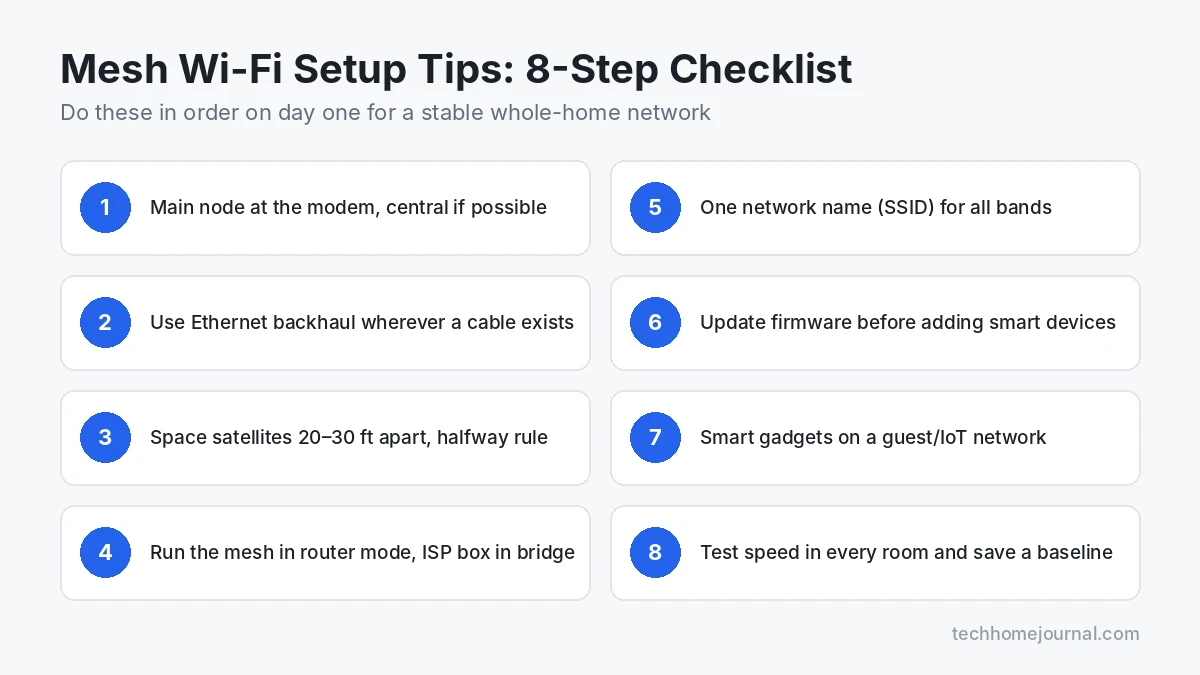
1. Start the main node at the modem, as central as possible
The main (gateway) node has to plug into your modem or fiber ONT, so its spot is partly fixed. If the modem sits in a corner, ask your ISP to move the line closer to the middle of the house, or run a longer Ethernet cable from the modem to a central shelf. Every satellite relays from this point, so a central start lifts the whole network.
2. Follow the halfway rule for satellites
The most common mistake is placing a satellite inside the dead zone. It then has a weak link back to the router and passes that weak signal on. Instead, put each satellite roughly halfway between the main node and the problem area. eero recommends spacing units about 20 to 30 feet apart and no more than 50 feet, and TP-Link gives a similar 50-foot limit for Deco units.
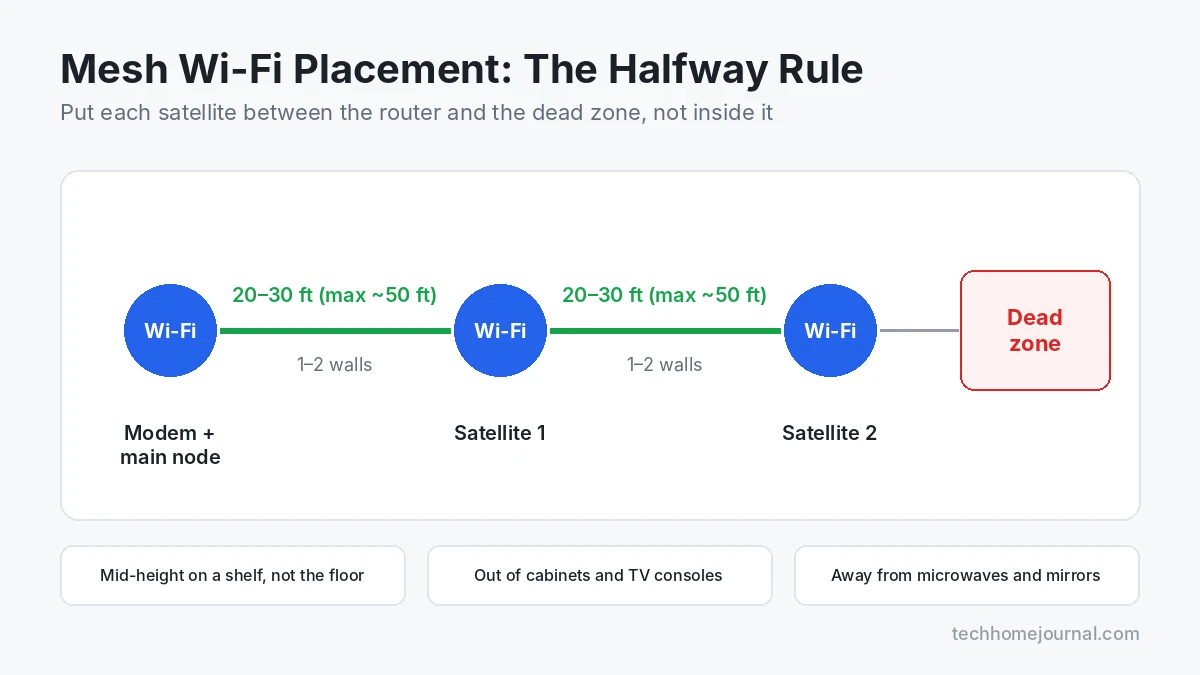
3. Use Ethernet backhaul wherever a cable exists
A wired link between nodes (Ethernet backhaul) frees up the wireless radios for your devices and removes the speed loss of each wireless hop. If your home already has Ethernet wall jacks, use them. With wired backhaul, nodes can also sit farther apart because they no longer need to hear each other over the air.
4. Put nodes at mid-height, in the open
Set each unit on a shelf, sideboard or bookcase, roughly between floor and ceiling. Keep it out of closed TV consoles and cabinets, and away from microwaves, large mirrors, fish tanks and metal furniture. In a minimal Scandinavian-style living room, a light wood shelf near a doorway is often both the tidiest and the best-performing spot.
5. Run one router, not two
If you keep the ISP gateway, switch it to bridge mode (or turn off its Wi-Fi) so the mesh system handles routing and wireless. Two routers in a row (double NAT) can break gaming, video calls and some smart-home apps. If bridge mode is not possible, put the mesh in access-point mode instead.
6. Keep one network name and let the mesh steer
Use a single SSID for all bands and let the system move devices between 2.4 GHz, 5 GHz and 6 GHz. Splitting bands into separate names usually makes roaming worse. The one exception is older smart-home gadgets that only join 2.4 GHz; many mesh apps let you temporarily pause 5 GHz while pairing them.
7. Update firmware, then add smart devices
Install the latest firmware before you connect everything, and turn on automatic updates. Then move cameras, plugs and sensors onto a guest or IoT network. If you are still deciding between protocols for those devices, our Matter vs Wi-Fi smart home comparison explains which gadgets add load to your Wi-Fi and which do not. Many mesh systems also act as a Thread border router, which matters if you plan a smart home without a separate hub.
8. Test every room and save a baseline
Run a speed test in each main room and write down the numbers. Check the spots where you will use bandwidth-heavy gear, such as the front door for a wireless doorbell camera or the garage for a Wi-Fi garage door opener. These baselines make later troubleshooting much faster.
Mesh Wi-Fi Maintenance Tips
A mesh network is mostly hands-off, but a little routine care keeps it fast as you add devices and as neighbors add their own networks. Here is a simple schedule.
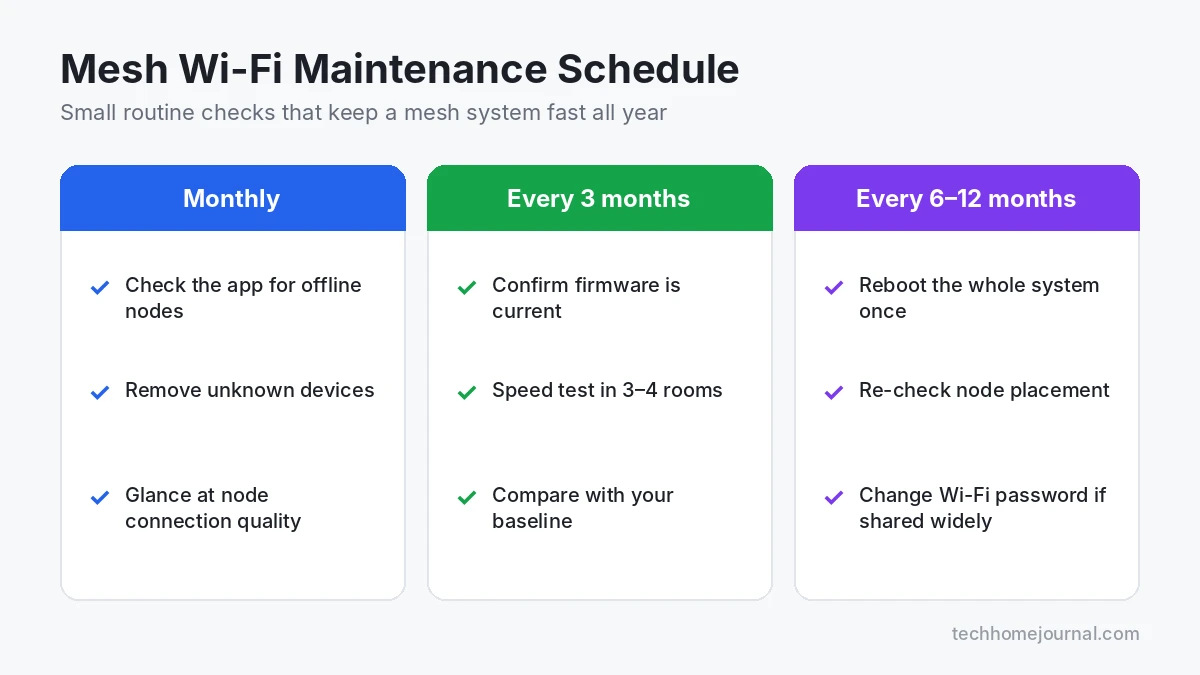
Monthly: a two-minute app check
- Open the mesh app and confirm every node is online with a good or excellent connection.
- Review the device list and remove anything you do not recognize.
- Look for nodes that keep dropping; that usually points to placement or interference.
Every three months: firmware and speed
- Confirm firmware is current, even with auto-updates on. Updates are sometimes paused after a bad release.
- Repeat your room-by-room speed tests and compare them with your baseline. A drop of 20% or more in one area is worth investigating.
- Check that new smart devices landed on the guest or IoT network, not your main one.
Every 6 to 12 months: a bigger review
- Reboot the whole system once, main node first, then satellites.
- Re-check node placement if furniture moved or you added rooms, rugs or large mirrors.
- Change the Wi-Fi password if it has been shared with many guests, and update it on your devices.
- Ask whether you have outgrown the system. If you have added many cameras or moved to a faster internet plan, an extra node or wired backhaul may help more than a brand-new kit.
If you manage most devices through a voice assistant, our Google Home tips and tricks and Apple HomeKit guide cover how to keep those ecosystems tidy on the same network. For choosing the app or hub that ties everything together, see our guide to smart home controllers.
Building a Network That Stays Fast
A well-planned home network setup is not a one-time task – it is a living system that rewards periodic attention.
Schedule a quarterly firmware check even if auto-updates are on. Manufacturers sometimes pause automatic rollouts after discovering a bad release, and manual verification takes under 5 minutes. Run a speed test from multiple locations in your home every few months and compare against your baseline. A 20% drop in throughput from a specific room usually signals a hardware issue or new interference source worth investigating.
The difference between a frustrating network and a reliable one usually comes down to the physical layer and the initial configuration choices. Cheap cable, poor router placement, and default passwords are the three things I see most often when diagnosing someone else’s broken setup. Fix those first and 80% of problems disappear.
As smart home technology adds more devices each year – Matter-compatible sensors, Wi-Fi 7 access points, 10G switches for home labs – the networks built with proper segmentation and wired backbones in 2026 will handle that growth without a rebuild. Plan for 40 devices even if you only have 20 today.
When you implement home network setup guide, revisit the checklist above against your real constraints.
Your network also powers wired cameras. See our guide to the best PoE home security camera system to learn how PoE cameras and an NVR fit into your home network.
Adding smart devices to your new network? Estimate devices, mesh Wi-Fi and installation with our free smart home cost calculator.
Frequently Asked Questions
What is the difference between a modem and a router?
A modem converts your ISP’s signal (cable, fiber, or DSL) into a standard Ethernet connection. A router takes that connection and distributes it to multiple devices, either wired or wirelessly. Many ISPs provide a combined modem-router unit, but separating the two gives you more control and typically better performance.
How many Mbps do I actually need for a household of 4?
A household of 4 with typical usage – streaming, video calls, gaming, and smart home devices – generally needs 200-400 Mbps to avoid congestion during peak hours. If multiple people work from home or stream 4K on several TVs at once, 500 Mbps or higher eliminates any bottleneck.
Is Wi-Fi 7 worth buying in 2026?
For most households, Wi-Fi 6E is the practical sweet spot right now. Wi-Fi 7 routers (802.11be) offer multi-link operation and theoretical speeds above 40 Gbps, but client device support is still limited in 2026. If you are building a network you plan to use for 5+ years and have the budget ($400-$700 for a good Wi-Fi 7 router), it is a reasonable future-proof choice.
Should I use my ISP’s provided router or buy my own?
Buy your own in almost every case. ISP-provided routers are typically mid-range hardware with locked firmware, limited configuration options, and a monthly rental fee of $10-$15. A one-time investment of $150-$250 in your own router gives you better performance, full control over settings, and no recurring cost.
How do I know if my network has been compromised?
Unexpected devices in your router’s connected-device list, sudden speed drops, or DNS settings that changed without your input are the clearest warning signs. Run a scan with Fing to see every device on your network and flag anything unfamiliar. Change your admin password and Wi-Fi password immediately if you spot something unexpected, then update your firmware.
How far apart should mesh Wi-Fi nodes be?
About 20 to 30 feet apart is a good starting point, with roughly 50 feet as the upper limit for a wireless link. In practice that is usually one or two rooms apart. With Ethernet backhaul, nodes can be farther apart.
Do I need to reboot my mesh Wi-Fi regularly?
Not often. Modern systems run fine for months. A reboot once or twice a year, or whenever a node behaves oddly, is plenty. Keeping firmware current matters more than frequent restarts.