
The Echo Show 8 is the smart display most people picture when they think of Alexa with a screen. It is big enough to watch a recipe video or a doorbell feed comfortably, small enough to fit on a kitchen counter or bedside table, and priced well below a tablet. For many homes it becomes the control centre: the place where you check the calendar, see who is at the door, turn off the lights and set the timer for dinner.
Amazon refreshed the Echo Show 8 in late 2025 with a redesigned fourth-generation model built for Alexa+, its new AI-powered assistant. That means there are now several generations on sale and in second-hand listings, each with different screens, cameras and smart home features. This guide explains what the Echo Show 8 does, how the generations compare, what Alexa+ changes, how to set one up, and where it works best in your home.
Prices are approximate and Echo devices are discounted heavily during Prime Day and holiday sales, so it is often worth waiting for a deal.
Still deciding between Amazon, Google and Apple? Our best smart display 2026 guide compares the Echo Show 8 with the Echo Show 11, Apple HomeView and Google Nest Hub.
Table of Contents
- Quick Answer: Should You Buy an Echo Show 8?
- What Is the Echo Show 8?
- Echo Show 8 Generations Compared
- What Alexa+ Adds
- The Echo Show 8 as a Smart Home Hub
- Echo Show 8 Sound Quality
- Using the Echo Show 8 With Cameras and Doorbells
- Setting Up an Echo Show 8
- Best Places to Put an Echo Show 8
- Useful Routines and Features
- Getting the Most From the Screen
- Echo Show 8 for Families and Older Relatives
- Should You Upgrade From an Older Echo Show?
- Accessories and Mounting Options
- Privacy Controls
- Echo Show 8 vs Other Smart Displays
- Common Echo Show 8 Problems and Fixes
- Frequently Asked Questions
- Final Verdict
Quick Answer: Should You Buy an Echo Show 8?
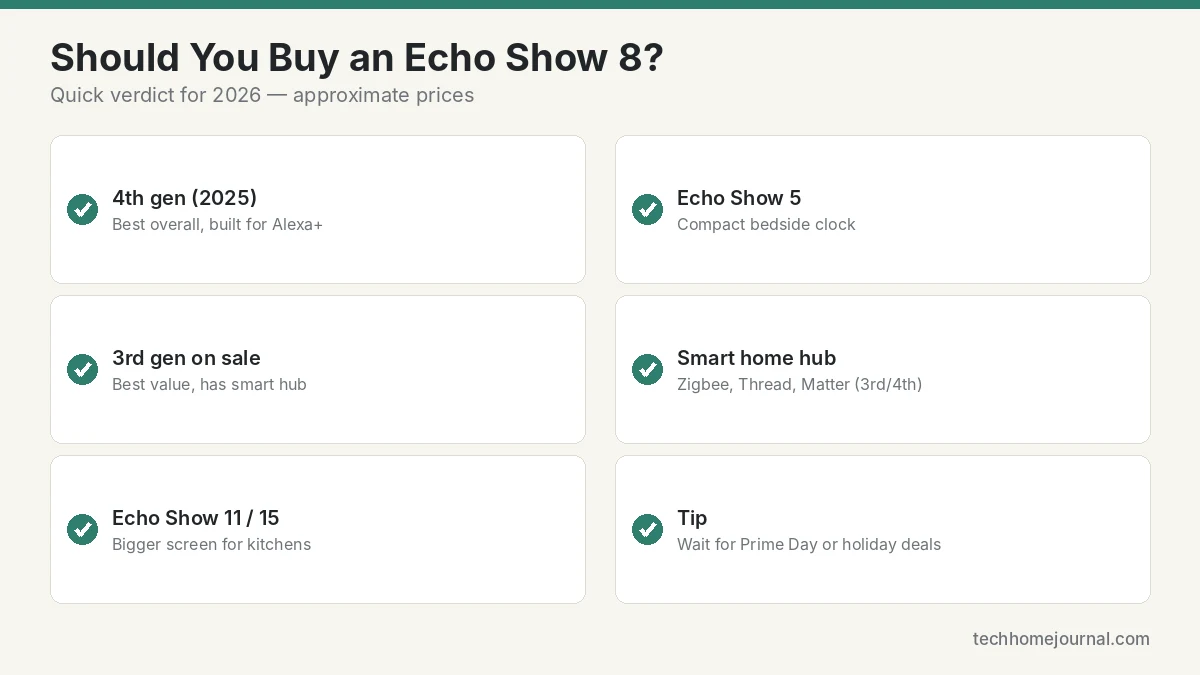
- Best overall: Echo Show 8 (4th gen, 2025). Built for Alexa+, with a faster processor, improved display and audio, and a built-in smart home hub. Launched at $179.99; the list price is now $199.99 after Amazon’s August 2026 increase, so it is worth waiting for a sale.
- Best value: Echo Show 8 (3rd gen, 2023) on sale. Still has a good screen, a 13 MP camera, spatial audio and a Zigbee, Thread and Matter hub.
- Want a bigger screen: Echo Show 11 or 15. Better for kitchens where you watch video from across the room.
- Want something smaller: Echo Show 5. Ideal as a bedside alarm clock, but cramped for video.
What Is the Echo Show 8?
The Echo Show 8 is an Alexa smart speaker with a touchscreen, a camera and a microphone array. Beyond everything an Echo speaker can do — music, timers, questions, smart home control — the screen adds:
- Visual answers: weather, calendar, shopping lists and recipes on screen.
- Smart home dashboard: tap to control lights, plugs, thermostats and locks.
- Camera feeds: view doorbells and security cameras, including Ring and Blink.
- Video calls: call friends and family with Alexa calling, and on supported services.
- Video and photos: watch Prime Video and other supported services, and display a rotating photo frame.
It is designed to be used at arm’s length or across a counter, not as a TV replacement. For long-form viewing, a tablet or TV is still better.
Echo Show 8 Generations Compared
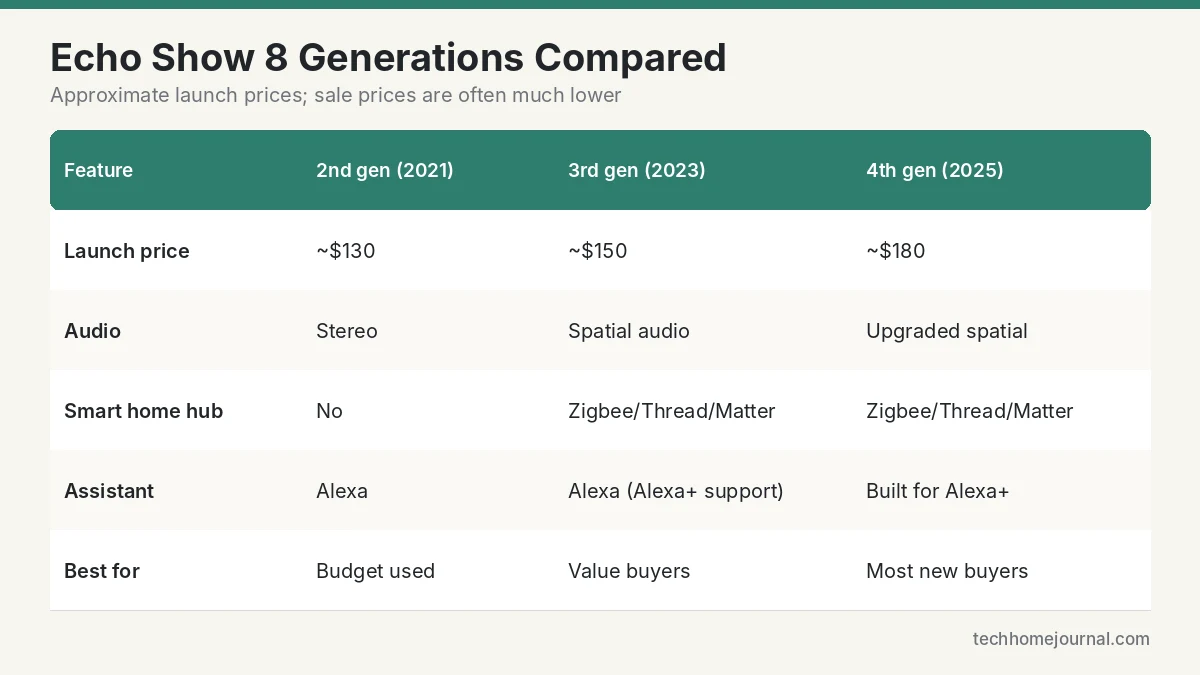
| Feature | 2nd gen (2021) | 3rd gen (2023) | 4th gen (2025) |
|---|---|---|---|
| Launch price | ~$130 | ~$150 | ~$180 |
| Display | 8-inch HD | 8-inch HD, improved | Redesigned, sharper display |
| Camera | 13 MP | 13 MP | 13 MP, improved processing |
| Audio | Stereo | Spatial audio | Upgraded spatial audio |
| Smart home hub | No | Zigbee, Thread, Matter | Zigbee, Thread, Matter |
| Assistant | Alexa | Alexa (Alexa+ support) | Built for Alexa+ |
| Best for | Budget second-hand | Value buyers | Most people buying new |
Echo Show 8 (4th Gen, 2025)
Amazon announced the fourth-generation Echo Show 8 alongside the Echo Show 11 in September 2025 as part of a lineup designed around Alexa+. It brings a new design, a faster Amazon processor for on-device AI, a sharper display and improved audio. It also keeps the built-in smart home hub for Zigbee, Thread and Matter devices, so you can connect many smart bulbs, plugs and sensors without a separate hub. If you are buying new and want the best Alexa+ experience, this is the model to get.
Echo Show 8 (3rd Gen, 2023)
The third generation added spatial audio, a faster chip than the 2nd gen and, importantly, a smart home hub with Zigbee, Thread and Matter support. It also introduced adaptive content that changes what is on screen depending on how far away you are. On sale, it is excellent value and still receives software updates.
Echo Show 8 (2nd Gen, 2021)
The 2nd gen is often sold refurbished or second-hand. It has a 13 MP camera that can pan and zoom to keep you in frame on calls, but no built-in smart home hub. Fine as a budget kitchen display, but the 3rd or 4th gen is worth the extra money for most people.
What Alexa+ Adds
Alexa+ is Amazon’s next-generation assistant, built on large language models. It is more conversational than classic Alexa: you can ask follow-up questions, make complex requests in one sentence, and get help with tasks such as planning meals or summarising your calendar. Amazon has said Alexa+ is included with Amazon Prime, and available as a paid subscription for non-Prime members.
On an Echo Show 8, Alexa+ can:
- Handle natural requests: “Turn off the downstairs lights except the hallway and remind me to take the bins out at 8.”
- Create routines by voice rather than building them step by step in the app.
- Answer follow-up questions without repeating the wake word context.
- Use the screen more intelligently, showing relevant information based on what you asked.
Alexa+ availability and features depend on your country and device. Classic Alexa features such as timers, music and smart home control continue to work as before.
The Echo Show 8 as a Smart Home Hub
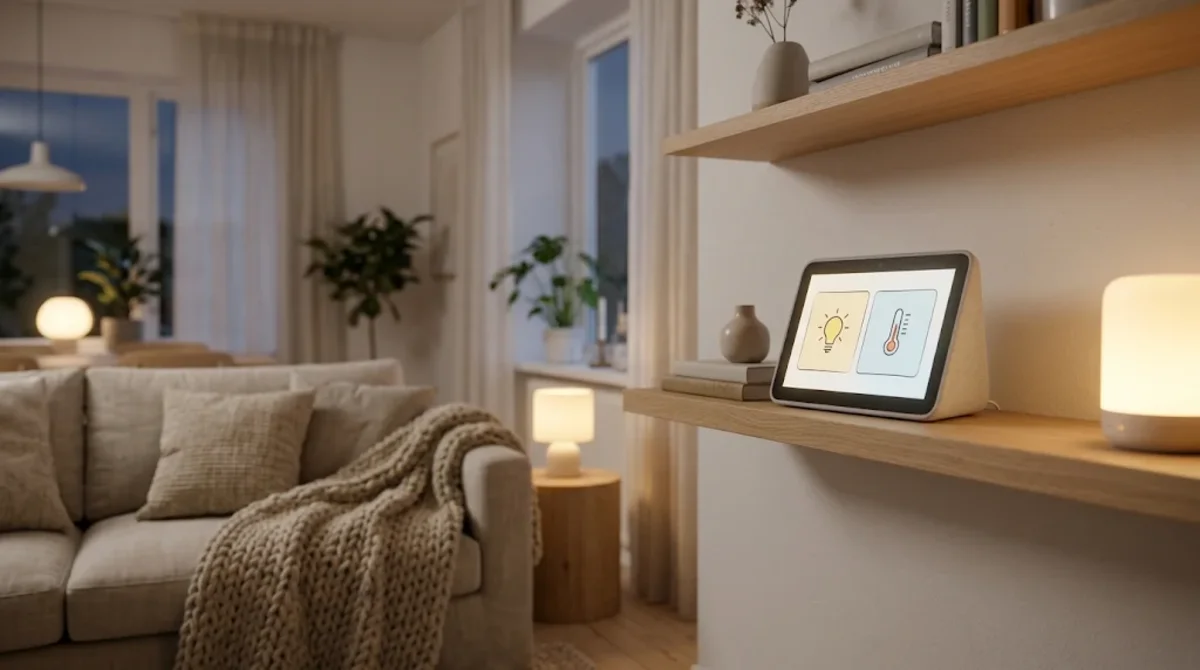
The 3rd and 4th gen Echo Show 8 include a built-in hub for Zigbee, Thread and Matter. In practice, this means you can add many smart bulbs, plugs, sensors and locks directly to Alexa without buying a separate hub.
- Zigbee: many Philips Hue bulbs (without the Hue Bridge), IKEA devices and sensors.
- Thread: low-power mesh devices such as some smart plugs, sensors and locks.
- Matter: the cross-brand standard that works across Alexa, Google Home and Apple Home.
If you are unsure which protocol to choose, our explainers on Thread vs Zigbee and Matter vs Wi-Fi cover the differences. For a dedicated wall-mounted control panel, Amazon’s Echo Hub is another option.
Echo Show 8 Sound Quality
For its size, the Echo Show 8 sounds good. The 3rd and 4th generation models use spatial audio processing to make music feel wider than the compact body suggests, and voices are clear for podcasts, news and video calls. Bass is noticeably fuller than on an Echo Show 5 or a small Echo Dot.
It will not replace a dedicated speaker for a living room party, but it is perfectly good for background music in a kitchen, home office or bedroom. If you want better audio, you can pair an Echo Show with a Bluetooth speaker or group it with other Echo speakers for multi-room music. Placing it on a solid surface near a wall also helps bass.
Using the Echo Show 8 With Cameras and Doorbells
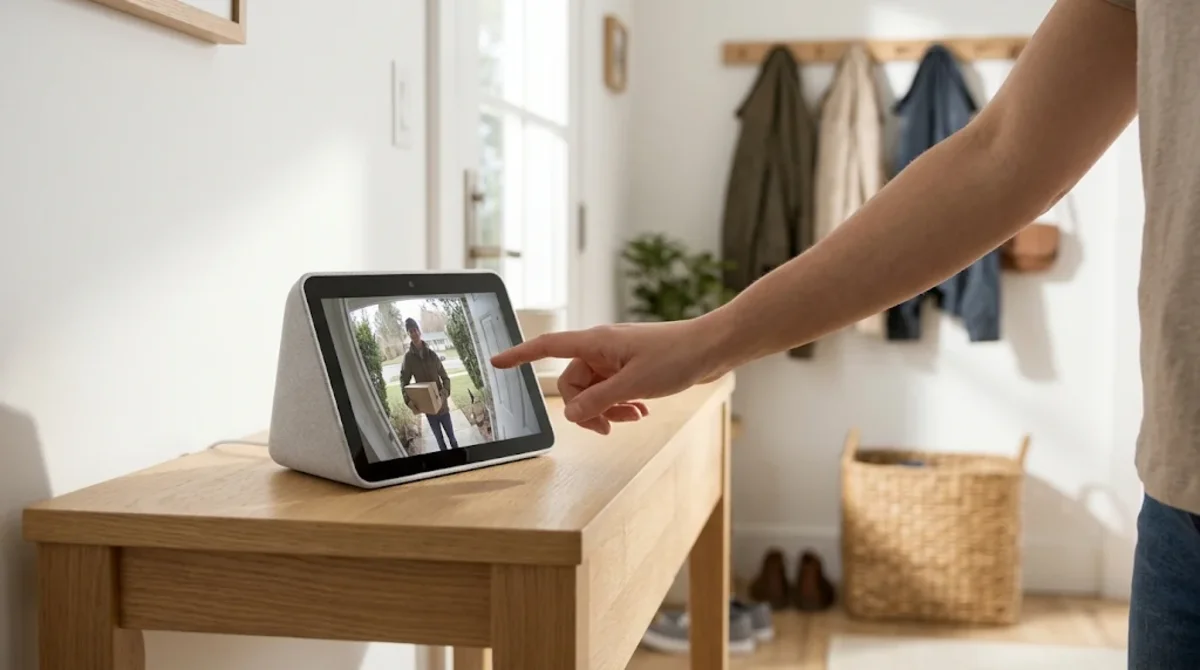
One of the most useful features is seeing who is at the door. When a compatible doorbell is pressed, the Echo Show 8 can automatically show the live feed and let you talk to the visitor. Ask “Alexa, show the front door” to view any compatible camera.
It works best with Amazon’s own brands — Ring and Blink — but many other cameras support Alexa too. If you are building a camera system, our guides to the Blink camera system and Ring doorbell explain how they integrate with Echo Show.
Setting Up an Echo Show 8
- Plug it in and wait for the screen to start.
- Choose your language and connect to Wi-Fi using the on-screen keyboard.
- Sign in to your Amazon account. You can also scan a QR code with the Alexa app.
- Choose a time zone and device location, which affects weather and local results.
- Update the software when prompted; this can take several minutes.
- Set up a voice ID in the Alexa app so the device recognises you for personal results.
- Add smart home devices — either through the Alexa app or by asking “Alexa, discover devices” for Zigbee and Matter devices.
- Customise the home screen with the widgets you want: calendar, weather, smart home favourites, shopping list.
If the Echo Show struggles to connect, our guide on how to connect Alexa to Wi-Fi covers common fixes.
Best Places to Put an Echo Show 8
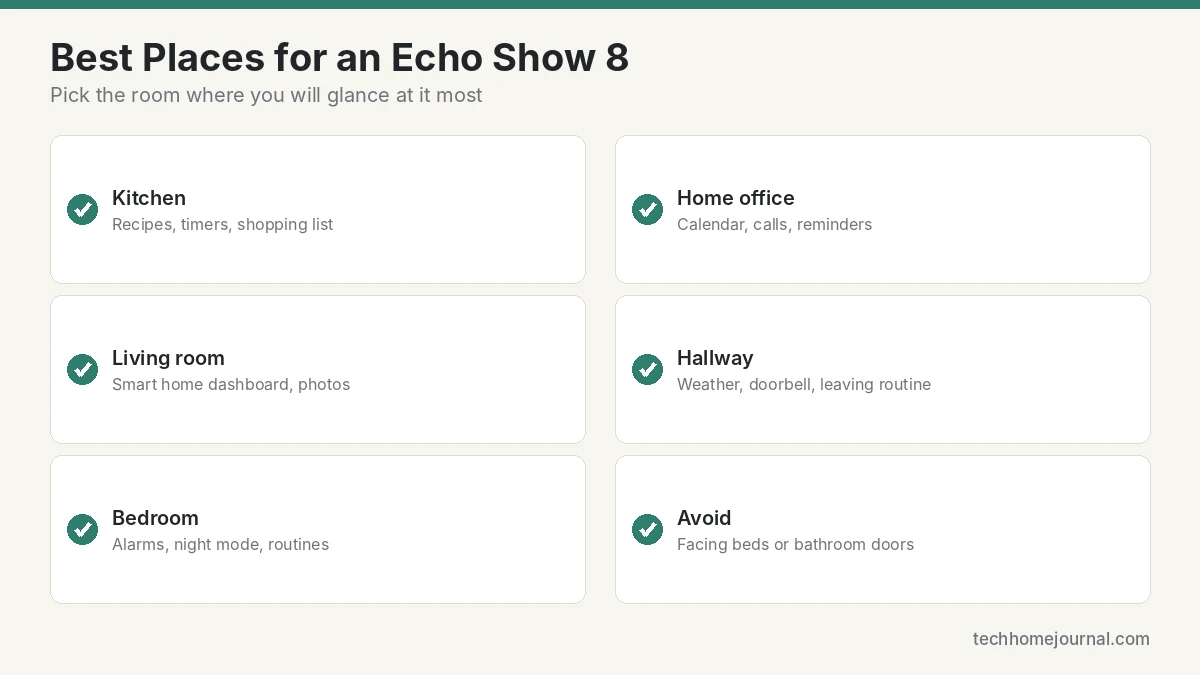
Kitchen
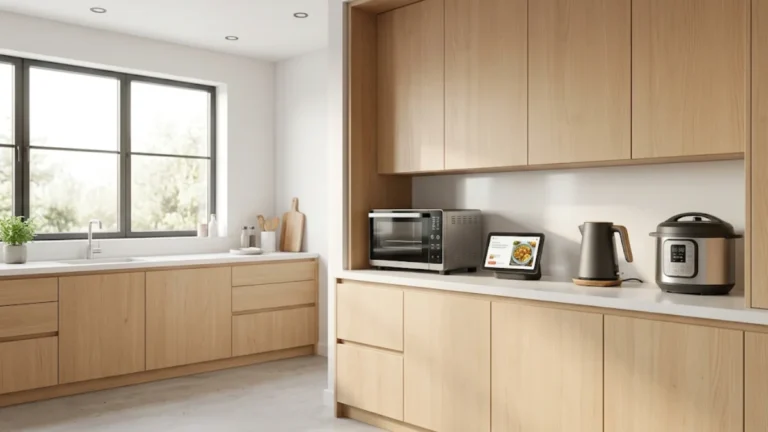
The most popular spot. Recipes, timers, unit conversions, shopping lists and music while you cook. Place it away from the sink and hob, and use hands-free voice control when your hands are messy.
Living Room
A good control centre for lights, the thermostat and the TV, plus a photo frame when idle. In a Scandinavian-style living room, a light grey or white Echo Show on a wooden sideboard blends in better than a black screen. Use the doorbell pop-up to see visitors without getting up.
Bedroom
Alarms, sunrise-style screen brightening, white noise and a “good night” routine that turns everything off. If the camera bothers you, use the built-in shutter. The smaller Echo Show 5 may be a better size here.
Home Office
Calendar at a glance, video calls, reminders and focus music. The camera is fine for casual calls, though a laptop webcam or dedicated camera is better for work meetings.
Entrance Hallway
Check the weather and calendar on the way out, run an “I’m leaving” routine and see who is at the door.
Useful Routines and Features
- Good morning: read the weather and calendar, turn on the kitchen lights, and start the news.
- Leaving home: turn off lights and plugs, set the thermostat to eco, arm cameras.
- Movie night: dim the living room lights and turn on the TV.
- Bedtime: turn everything off, lock the door (if you have a smart lock) and set an alarm.
- Drop In: check in on family members who have given permission.
- Photo frame: show Amazon Photos albums when idle.
- Shopping list: add items by voice and view them on screen.
Our guide to Alexa routines has more ideas you can set up in minutes.
Getting the Most From the Screen
A few settings make the Echo Show 8 far more useful day to day:
- Customise the home screen rotation. Turn off content you never look at — such as news headlines or shopping suggestions — and keep the calendar, weather, reminders and smart home favourites.
- Pin your smart home favourites. Add the devices you control most often to the smart home dashboard so they are one tap away.
- Use a photo album. Set the screen to show a family photo album when idle; it turns the device into a digital photo frame and makes it feel less like a gadget.
- Set Do Not Disturb and night mode. Dim the screen and silence notifications automatically in the evening, especially in bedrooms.
- Adjust the sound. Use the equaliser in the device settings to add or reduce bass, depending on where the display sits.
- Turn on visual reminders. On-screen sticky notes and reminders are useful for families sharing one kitchen display.

Echo Show 8 for Families and Older Relatives
The Echo Show 8 can be particularly helpful for families spread across different homes. Video calls with Alexa are as simple as saying “Alexa, call Mum”, and Drop In — with permission — lets trusted family members check in quickly. Large, clear on-screen text and voice control make it easier to use than a phone for many older people.
For children, Amazon Kids settings let you filter content, set time limits and control which features are available. Review these settings before placing an Echo Show in a child’s room, and consider closing the camera shutter when it is not in use.
Should You Upgrade From an Older Echo Show?
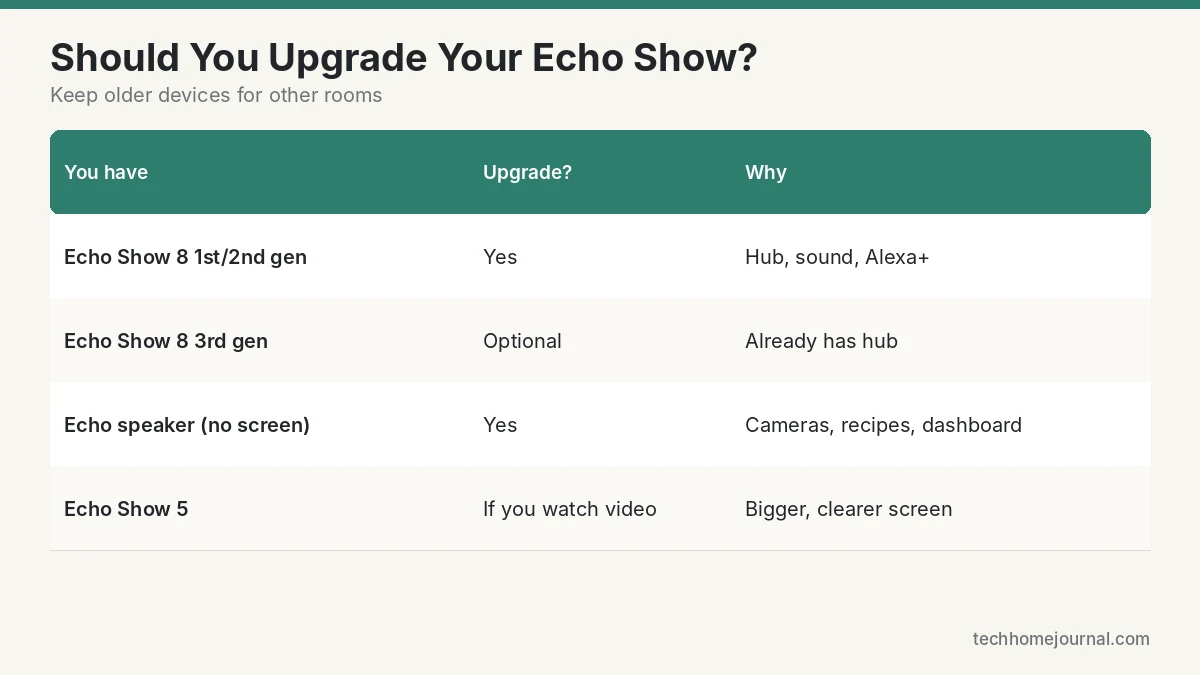
- From a 1st or 2nd gen Echo Show 8: yes, if you want a built-in smart home hub, better sound and the best Alexa+ experience. The jump in speed and features is noticeable.
- From a 3rd gen Echo Show 8: only if you want the newest design, better audio and the fastest Alexa+ performance. The 3rd gen already has the hub and remains well supported.
- From an Echo speaker without a screen: yes, if you want camera feeds, recipes, calendars and a visual smart home dashboard. Keep the old speaker for another room.
- From an Echo Show 5: yes, if you use video, recipes or camera feeds often. The bigger screen makes a real difference across a kitchen.
Accessories and Mounting Options
- Adjustable stands tilt the screen towards you on a counter or desk, which helps with video calls and reduces glare.
- Wall mounts free up counter space in small kitchens; make sure the power cable can be routed neatly.
- Smart plugs and bulbs are the first accessories most people add, because they make the smart home dashboard useful immediately. Our guide to what a smart plug is explains how they work.
- A compatible thermostat lets you see and adjust the temperature on screen; our list of the best thermostats for Alexa compares options.
Keep the speaker grilles uncovered and leave space around the device so sound and microphones are not blocked.
Privacy Controls
Smart displays with cameras need careful privacy settings. The Echo Show 8 offers:
- A physical camera shutter that covers the lens completely.
- A microphone/camera off button that disconnects them electronically; a red light confirms they are off.
- Voice recording settings in the Alexa app, including review and deletion options.
- Visual ID and other personalisation features that you can turn off if you prefer not to use them.
Review privacy settings in the Alexa app under Settings > Alexa Privacy. Amazon’s Alexa privacy hub explains how data is handled. The FTC’s guide to securing internet-connected devices has general tips for any smart device. Avoid placing the camera where it faces a bed or bathroom door, and close the shutter when not in use if you prefer.
Echo Show 8 vs Other Smart Displays
| Device | Screen | Strengths | Best for |
|---|---|---|---|
| Echo Show 5 | ~5.5 inch | Compact, cheap | Bedside alarm clock |
| Echo Show 8 | ~8 inch | Balanced size, hub, good audio | Most homes |
| Echo Show 11 / 15 | 11–15 inch | Bigger screen, wall mounting (15) | Kitchens, family hubs |
| Google Nest Hub | ~7 inch | Google services, sleep tracking | Google homes |
If you use Google services, a Google display may suit you better; our Google Home Mini guide covers Google’s current speakers. For a wider comparison, see our guide to the best smart speaker for home.
Common Echo Show 8 Problems and Fixes
- Not responding to the wake word: check the microphone button, move the device away from walls and noisy appliances, and retrain your voice ID.
- Wi-Fi drops: restart the device and router, and move closer to the router or add a WiFi extender.
- Doorbell feed slow to appear: check the doorbell’s Wi-Fi strength and Echo Show internet speed.
- Smart home device unresponsive: check the device in its own app, then ask Alexa to discover devices again.
- Screen too bright at night: turn on adaptive brightness or set a Do Not Disturb schedule that dims the screen.
- Frozen screen: unplug for 30 seconds and plug back in. A factory reset is available in Settings > Device Options if problems persist.
Frequently Asked Questions
What is the newest Echo Show 8?
The newest model is the fourth-generation Echo Show 8, announced in September 2025 and designed for Alexa+. It has a redesigned body, faster processor, improved display and audio, and a built-in smart home hub.
Is the Echo Show 8 worth it?
Yes, for most Alexa homes. It is large enough for video, recipes and camera feeds, works as a smart home hub for Zigbee, Thread and Matter devices, and costs much less than a tablet.
Does the Echo Show 8 need a subscription?
No. Core features work without a subscription. Alexa+ is included with Amazon Prime and available as a paid plan for non-Prime members. Some camera features require the camera brand’s own plan.
Can the Echo Show 8 act as a smart home hub?
The 3rd and 4th generation models include a hub for Zigbee, Thread and Matter devices. The 2nd generation does not.
Can I watch Netflix on an Echo Show 8?
Supported video services vary by region and change over time. Prime Video is supported, and some other services may be available through the device’s browser or apps. Check the current list on Amazon before buying if video is important.
Does the Echo Show 8 have a camera cover?
Yes. It has a built-in physical shutter to cover the camera, plus a button to turn off the microphones and camera.
Echo Show 8 or Echo Show 5?
The Echo Show 8 is better for kitchens, living rooms and video. The Echo Show 5 is better as a compact bedside clock or for small spaces.
Can I use the Echo Show 8 as a digital photo frame?
Yes. Connect Amazon Photos or another supported photo service and choose an album to display when the screen is idle. It is one of the most popular features for living rooms and kitchens.
Does the Echo Show 8 work without Wi-Fi?
No. It needs an internet connection for Alexa, video, smart home control and most features. A few local smart home actions may continue briefly, but expect most features to stop until Wi-Fi returns.
How do I reset an Echo Show 8?
Swipe down from the top of the screen, open Settings, then Device Options and choose Reset to Factory Defaults. If the screen is unresponsive, unplug the device for 30 seconds first and try again.
Final Verdict
The Echo Show 8 (4th gen) is the best all-round Alexa smart display for most homes in 2026: big enough to be useful, small enough to fit anywhere, and ready for Alexa+ with a built-in smart home hub. If you want to save money, a 3rd gen Echo Show 8 on sale is still a great buy. Choose an Echo Show 5 for the bedside or an Echo Show 11 or 15 if you need a bigger screen for the kitchen.
Set it up with your most-used routines, add your doorbell and cameras, and review the privacy settings — and it quickly becomes the easiest way to run your home. For more on the smart home standards it supports, see the Connectivity Standards Alliance’s Matter overview and the Thread Group.