
A Kwikset smart lock reset is the fastest way to give your lock a clean start. Maybe you just moved into a home and the previous owner’s codes still work. Maybe the lock dropped off Wi-Fi, the app shows it as offline, or the motor keeps turning the wrong way. In all of these cases, a factory reset wipes the lock back to its out of the box state so you can set it up again properly.
The good news is that most Kwikset electronic locks share almost the same reset method: pull the battery pack, hold the Program button and wait for the beeps. This guide walks you through the Kwikset smart lock reset process for Halo, Halo Touch, Halo Select, Aura, SmartCode, Signature Series and Kevo models, explains what gets erased, and shows you what to do afterwards so your door stays secure.
Table of Contents
- Before You Reset: What Gets Erased
- Which Kwikset Lock Do You Have?
- Kwikset Smart Lock Reset: Step by Step (Halo, Aura, SmartCode)
- How to Reset a Kwikset Kevo
- Resetting Z-Wave and Zigbee Kwikset Locks
- Factory Reset vs Rekey vs Code Reset
- What to Do After a Kwikset Smart Lock Reset
- Common Kwikset Problems a Reset Can Fix
- Door Handing and Calibration After a Reset
- Battery Tips for Kwikset Smart Locks
- Security Checklist After Resetting Your Lock
- When to Contact Kwikset Support
- Frequently Asked Questions
- Final Thoughts
Before You Reset: What Gets Erased
A factory reset is not a small tweak. According to Kwikset’s factory reset support page, resetting a Halo, Halo Touch or Aura lock erases:
- Bluetooth pairings and Wi-Fi network settings
- User associations and every access code
- Event history and all lock settings, including door handing
On Halo Select and Aura Reach models, the reset removes all access codes and their schedules, puts settings back to default, and marks the lock as offline in the app until you set it up again.
Because of this, do three things first:
- Keep your physical key handy. Most Kwikset smart locks have a keyway as a backup. If something goes wrong, you can still get in.
- Delete the lock from your home in the Kwikset app. Kwikset recommends this before resetting Wi-Fi and Bluetooth models.
- Forget the lock in your phone’s Bluetooth settings. This stops your phone trying to reconnect to the old pairing.
Which Kwikset Lock Do You Have?
Remove the interior cover (it usually slides up, sometimes after removing a small screw) and look for a model label, or check the box and app. The most common families are:
| Kwikset family | Connection | Reset method |
|---|---|---|
| Halo, Halo Touch, Halo Select | Wi-Fi (Select adds Matter) | Program button during battery reinsertion |
| Aura, Aura Reach | Bluetooth | Program button during battery reinsertion |
| SmartCode (888, 909, 914, 916, 955 and others) | None or Z-Wave/Zigbee | Program button during battery reinsertion |
| Signature Series / Home Connect | Z-Wave or Zigbee | Program button, then re-add to your hub |
| Kevo | Bluetooth | Hold the reset button for 10 seconds |
If your exact model is not listed, the Program button method below still works on most Kwikset electronic deadbolts. Check your manual if you are unsure.
Kwikset Smart Lock Reset: Step by Step (Halo, Aura, SmartCode)
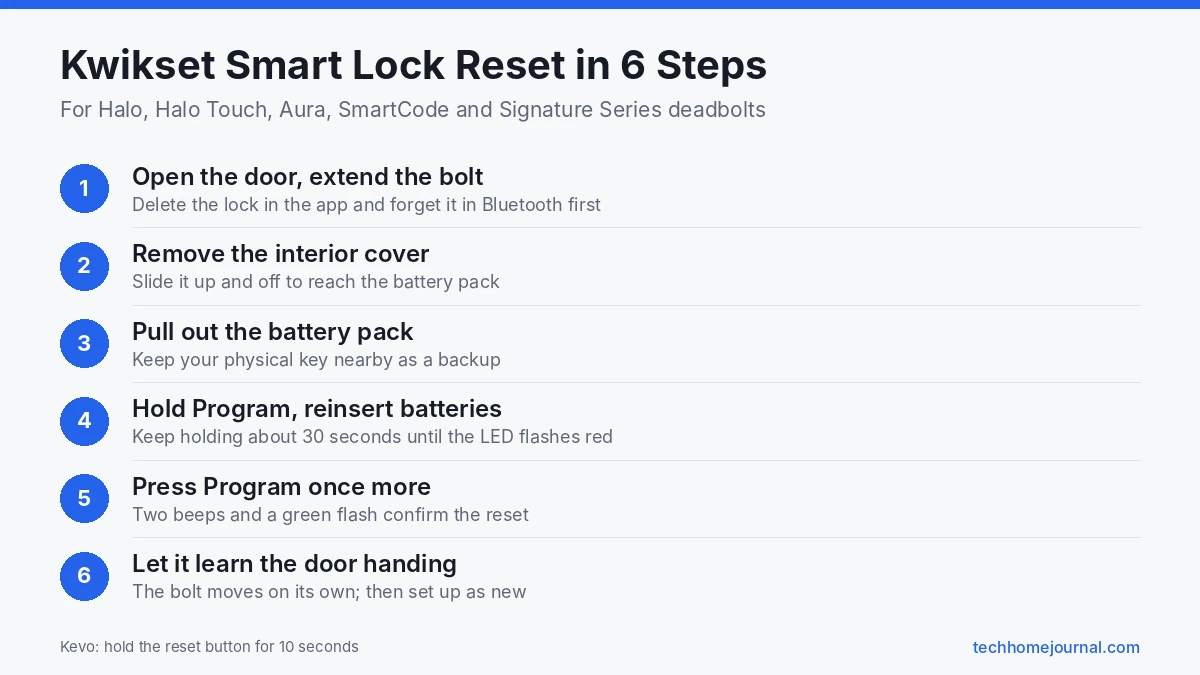
This is the standard method that Kwikset lists for its Signature Series and SmartCode deadbolts, and the same button logic applies to Halo, Halo Touch and Aura locks:
- Open the door and extend the bolt with the thumbturn. This keeps the lock from locking itself while you work, and it makes the handing step easier afterwards.
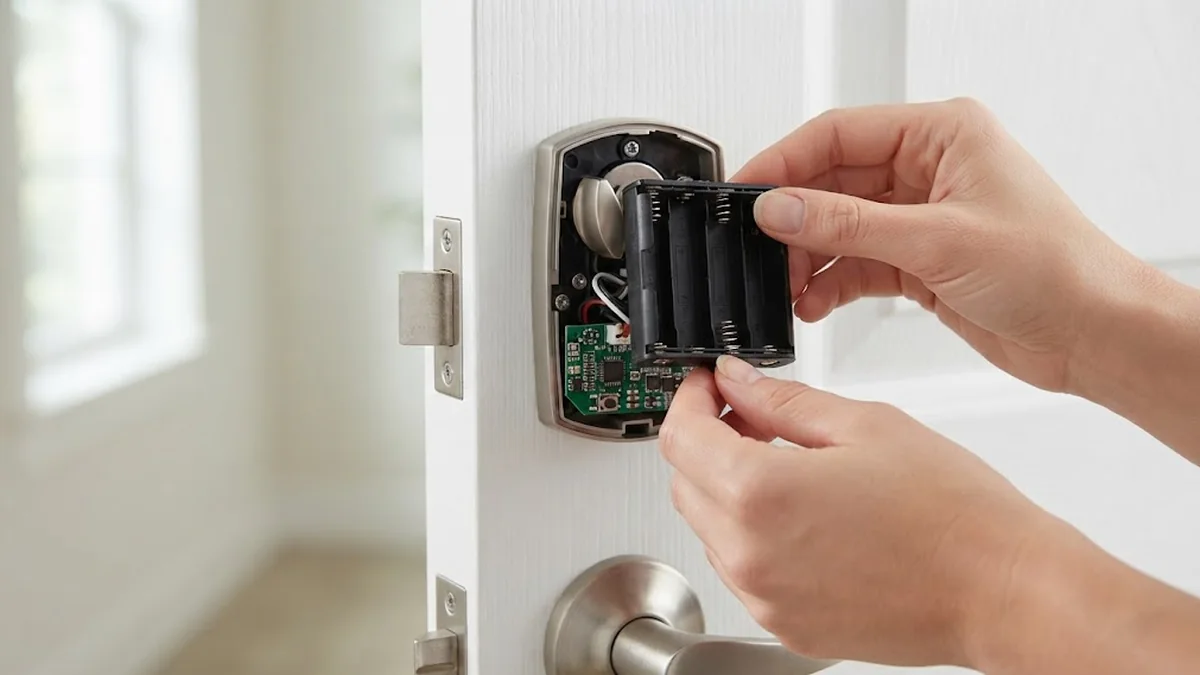
- Remove the interior cover. Slide it up and off.
- Pull out the battery pack.
- Press and hold the Program button while you slide the battery pack back in.
- Keep holding for about 30 seconds, until the lock beeps and the status LED flashes red.
- Release, then press the Program button once more. The reset is complete when the LED flashes green and you hear two beeps.
- Let the lock learn its handing. The bolt will move on its own to work out whether your door is left or right handed. Keep hands clear and leave the door open until it stops.
That is it. The lock is now back to factory settings.
Tips if the reset does not take
- Use fresh batteries. Weak AA batteries can stop the lock from finishing the reset. Kwikset locks generally work best with new alkaline batteries.
- Count the full 30 seconds. Letting go too early is the most common mistake.
- Find the right button. On some models the Program button sits next to the battery pack, on others it is on the circuit board behind the cover. It is small and often labeled “Program” or marked with a dot.
How to Reset a Kwikset Kevo
Kevo locks use a separate reset button. Kwikset’s factory reset topic page explains the process:
- Remove the interior cover.
- Press and hold the reset button for 10 seconds, until the lock beeps and the lock face LEDs flash red.
- Re-enroll the owner’s phone and any key fobs. eKeys you sent before can be sent again because they never expire.
Resetting Z-Wave and Zigbee Kwikset Locks
Kwikset’s Home Connect and Z-Wave or Zigbee SmartCode locks reset the same way, using the Program button. The extra step is your smart home hub. A factory reset removes the lock from your Z-Wave or Zigbee network, so you need to:
- Exclude the lock in your hub app first if you can. This keeps the hub’s device list clean.
- Do the factory reset as described above.
- Include the lock again using your hub’s add device process. Your hub app tells you which button to press on the lock to start pairing; on most Kwikset Z-Wave locks it involves the Program button or the A button.
If you are choosing between protocols for a future lock, our comparison of Matter vs Wi-Fi smart home devices explains the pros and cons of each.
Factory Reset vs Rekey vs Code Reset
People often mix up three different jobs:
- Factory reset: Wipes the electronics. Codes, users, Wi-Fi and history are erased. Use it when changing owners or fixing stubborn problems.
- Rekeying (SmartKey Security): Changes which physical key opens the lock. Kwikset’s SmartKey Security system lets you rekey with a small tool and a working key, without a locksmith. This does not affect the electronic codes.
- Deleting a code: Removes one user’s code in the app or on the keypad without touching anything else. Use this when a cleaner or contractor no longer needs access.
When you move into a new home, the safest approach is to do all three: factory reset the electronics, rekey the physical lock and set fresh codes. Our guide on smart lock vs traditional lock security explains why both layers matter.
What to Do After a Kwikset Smart Lock Reset
- Set up the lock as new in the Kwikset app. For Halo and Aura models, create or open your home, add a device and follow the prompts. Have your Wi-Fi password ready for Halo models.
- Create new access codes. Avoid obvious codes like birthdays or 1234.
- Check auto-lock and sound settings. These return to defaults after the reset.
- Reconnect voice assistants. Re-link Alexa, Google Home or Apple Home if you used them. Our Apple HomeKit guide covers how Home app accessories work.
- Test with the door open first. Lock and unlock a few times from the keypad, the app and the thumbturn.
Common Kwikset Problems a Reset Can Fix
- Lock offline in the app after a router change or Wi-Fi outage.
- Previous owner’s codes still opening the door.
- Bolt turning the wrong way because the handing was learned incorrectly.
- Keypad unresponsive after a firmware hiccup (try fresh batteries first).
- Lock stuck in a programming loop with repeated beeping.
If problems continue after a reset with fresh batteries, check that the bolt moves freely when the door is closed. A misaligned strike plate makes the motor strain, which can look like an electronic fault. Our smart lock installation guide explains how to adjust the strike.
Door Handing and Calibration After a Reset
After a factory reset or a fresh set of batteries, many Kwikset electronic deadbolts, including SmartCode models, run an automatic door-handing cycle. The bolt moves on its own to learn whether your door is left- or right-handed. If this step goes wrong, the lock may lock when you ask it to unlock, or stall halfway.
To get a clean calibration:
- Keep the door open during the handing cycle so the bolt can travel freely.
- Don’t touch the keypad or turn the thumb turn while the bolt is moving.
- Check the bolt moves smoothly by hand. If it rubs on the strike plate when the door is closed, adjust the strike or the door hinges before blaming the electronics.
- Repeat the reset if the lock beeps an error or the bolt stops halfway. A second attempt with fresh batteries usually works.
Wi-Fi models such as Halo and Halo Touch also learn the door direction during app setup. If the app shows the lock as “locked” when it is actually open, run the calibration or door handing step again from the lock’s settings in the Kwikset app.
Battery Tips for Kwikset Smart Locks
Weak batteries cause more Kwikset problems than any other single issue, including failed resets, slow motors and dropped Wi-Fi connections. Halo, Aura and SmartCode deadbolts run on four AA batteries.
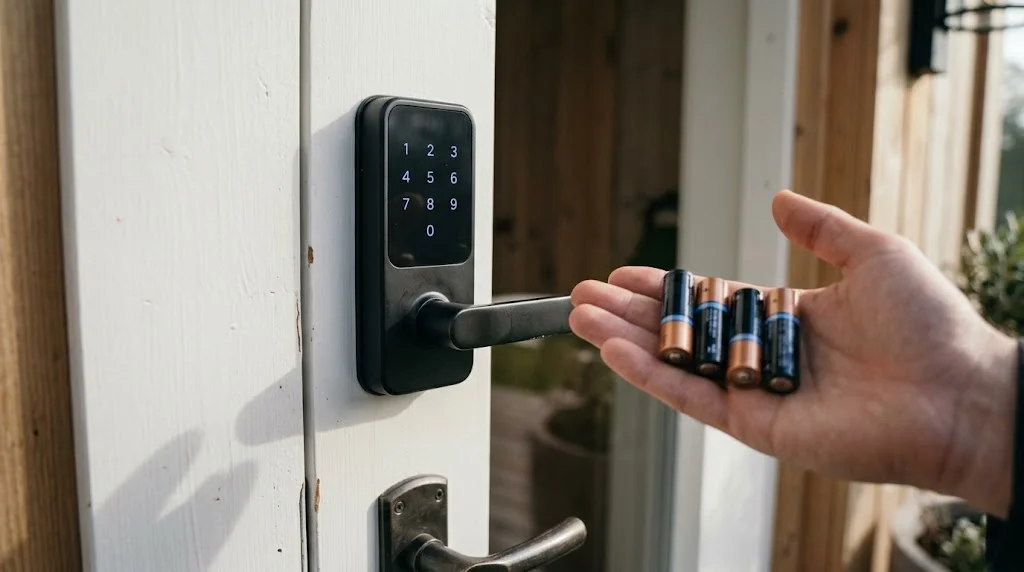
- Use new, good-quality alkaline AA batteries from the same pack. Mixing old and new cells shortens battery life.
- Avoid rechargeable batteries unless your model’s manual allows them. Their lower voltage can trigger low-battery warnings early.
- Replace batteries as soon as the lock or app gives a low-battery alert. Don’t wait for the motor to slow down.
- Expect shorter battery life on Wi-Fi models like Halo than on Bluetooth or Z-Wave models, because Wi-Fi uses more power.
- Keep the physical key somewhere you can reach it from outside, such as with a trusted neighbour, in case the batteries die completely. Some models also have a 9V emergency contact on the keypad.
Security Checklist After Resetting Your Lock
A reset is a good moment to tighten security, especially if you just moved into a new home or the lock was installed by a previous owner.
- Create a new programming code on SmartCode models so no one else can add user codes.
- Set new user codes for each family member. Avoid birthdays, house numbers and simple patterns like 1234.
- Rekey the cylinder with Kwikset SmartKey so old physical keys no longer work. This takes a minute with the SmartKey tool and a working key.
- Set up the app again on Wi-Fi or Bluetooth models and turn on two-factor authentication for your account.
- Check firmware in the Kwikset app and install updates.
- Turn on auto-lock if your model supports it, so the door locks itself after a set time. Thirty seconds to a few minutes works well for most front doors.
Comparing locks before you replace an old one? Our guide to smart locks vs traditional locks looks at the security trade-offs, and our best deadbolt locks roundup covers strong replacements.
When to Contact Kwikset Support
If a reset with fresh batteries doesn’t fix the problem, the issue may be hardware. Contact Kwikset through its official support page if:
- The lock shows no lights or sounds at all with new batteries.
- The motor makes noise but the bolt doesn’t move, even with the door open.
- The keypad has dead buttons or won’t accept any code after a reset.
- The lock keeps losing its connection after you’ve confirmed strong Wi-Fi at the door.
Have the model number (on the back of the interior unit or on the box) and your proof of purchase ready. Kwikset’s warranty terms differ for mechanical parts, finish and electronics, so check the warranty for your model before buying replacement parts.
Frequently Asked Questions
How do I reset my Kwikset smart lock without the app?
Use the physical Program button method: remove the battery pack, hold the Program button while reinserting it, keep holding for about 30 seconds until the LED flashes red, then press Program once more. No app is required.
How long do you hold the Kwikset reset button?
About 30 seconds for Halo, Aura, SmartCode and Signature Series locks. For Kevo, hold the reset button for 10 seconds.
Will a Kwikset smart lock reset change my physical key?
No. The reset only affects the electronics. To change the physical key, use the SmartKey rekeying process or call a locksmith.
Why is my Kwikset lock beeping after the reset?
The lock beeps during reset to confirm each step, then moves the bolt to learn the door’s handing. Constant beeping afterwards usually means low batteries or a bolt that is rubbing against the strike plate.
Do I need to reset my Kwikset lock when I change my Wi-Fi?
Not always. Halo locks can often be moved to a new network from the app. If the lock will not reconnect, a factory reset and fresh setup is the reliable fix.
Can I reset a Kwikset smart lock from outside the door?
No. The Program button is on the interior side, under the cover, so you need to be inside. This is a deliberate security feature.
Why does my Kwikset lock move on its own after I change batteries?
That is the automatic door-handing cycle. The lock moves the bolt to learn which way your door opens. Keep the door open and leave the lock alone until it finishes.
Does a factory reset rekey my Kwikset lock?
No. A reset clears codes and settings but does not change the physical key. Use the SmartKey rekey tool if you want old keys to stop working.
Do I need the Kwikset app after a factory reset?
Only on connected models. The reset itself is done with the program or reset button on the interior unit, usually while removing and reinserting the battery pack. After that, the app is needed to set the lock up again on Wi-Fi or Bluetooth models, while keypad-only SmartCode locks can be reprogrammed from the keypad.
How long do Kwikset smart lock batteries last?
It depends on the model and how often the door is used. Keypad and Z-Wave models usually last longer than Wi-Fi models like Halo. Watch the low-battery alert in the app or on the keypad and replace all four batteries at once.
Final Thoughts
A Kwikset smart lock reset takes about two minutes once you have found the Program button: battery out, hold the button, battery in, wait 30 seconds, press once more. Before you start, delete the lock from the app and keep your key nearby. Afterwards, set fresh codes, re-link your voice assistants and test with the door open. If you are thinking about upgrading instead, our roundup of the best smart lock options and our guide to Bluetooth locks are good next reads.