
Knowing how to reset Nest thermostat models properly can save you from a lot of frustration. A quick restart fixes most frozen screens and Wi-Fi hiccups, a network reset helps after a router change, and a full factory reset is the right move before you sell your home or hand the thermostat to someone else.
The catch is that Google uses slightly different menus on different Nest models. This guide covers the Nest Learning Thermostat (4th gen and 3rd gen), the Nest Thermostat and the Nest Thermostat E, with the exact menu paths from Google’s own support pages. We also explain what each reset erases and what to do afterwards so your heating and cooling keep working.

Table of Contents
- Restart or Reset: Which One Do You Need?
- How to Restart a Nest Thermostat
- How to Reset Nest Thermostat to Factory Settings
- Other Reset Options on 3rd Gen and Thermostat E
- Hardware Restart When the Screen Is Frozen
- How to Reset Nest Thermostat Wi-Fi
- What to Do After Resetting Your Nest
- Resetting a Nest Before Selling or Moving
- When a Reset Does Not Fix It
- Checklist Before You Reset a Nest
- Nest Battery and Power Problems That Look Like Faults
- Nest, the Google Home App and Your Account
- Temperature Sensors and Other Apps After a Reset
- Common Nest Problems and the Right Fix
- How Long Does a Nest Take to Relearn After a Reset?
- Set Your Eco Temperatures Again
- Nest Reset Tips for Renters and Landlords
- Frequently Asked Questions
- Final Thoughts
Restart or Reset: Which One Do You Need?
Start with the lightest option. A restart keeps all your settings, while resets erase specific information.
| Option | What it does | When to use it |
|---|---|---|
| Restart | Reboots the thermostat, keeps everything | Frozen screen, slow response, small glitches |
| Schedule reset | Clears the temperature schedule | You want to start a fresh schedule |
| Home/Away reset | Clears what it learned about when you are home | After moving or big routine changes |
| Network reset | Erases Wi-Fi details | New router or network problems |
| Factory reset (All Settings) | Erases personal settings, back to defaults | Selling, moving, or nothing else works |
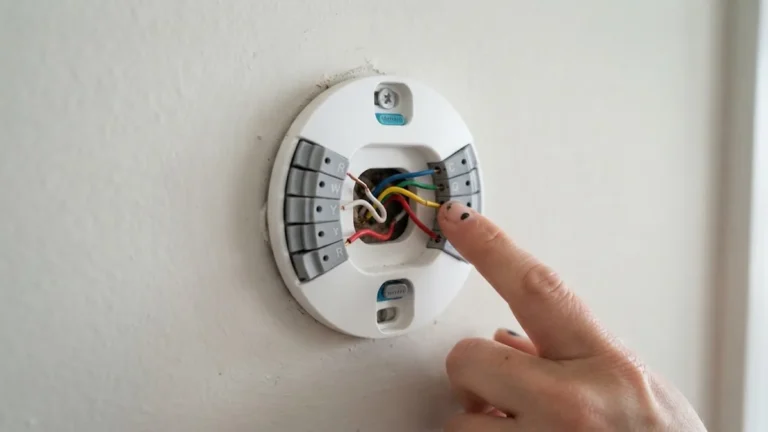
Google’s restart and reset guide recommends writing down your wiring and equipment settings first. Go to Settings, then Equipment, and note the wire setup, heating type and any safety temperatures.
How to Restart a Nest Thermostat
Nest Learning Thermostat (4th gen) and Nest Thermostat
- Press the ring (4th gen) or tap the side of the Nest Thermostat to open the menu.
- Go to Settings.
- Select Restart.
Nest Learning Thermostat (3rd gen) and Nest Thermostat E
- Press the ring to open the Quick View menu.
- Go to Settings, then Reset.
- Choose Restart.
A restart keeps all your schedules, learning and Wi-Fi settings. It is the right first step for almost any problem.

How to Reset Nest Thermostat to Factory Settings
Nest Learning Thermostat (4th gen) and Nest Thermostat
- Open the menu and go to Settings.
- Select Factory Reset and confirm.
- Set the thermostat up again and add it back to your home in the Google Home app.
Nest Learning Thermostat (3rd gen) and Nest Thermostat E
- Open the Quick View menu and go to Settings, then Reset.
- Select All Settings.
- Confirm the reset.
Google recommends removing the thermostat from your account in the app before a factory reset on these models. Linked Nest Temperature Sensors stay linked after the reset.
Other Reset Options on 3rd Gen and Thermostat E
The 3rd gen Learning Thermostat and the Thermostat E offer more targeted resets under Settings, then Reset:
- Schedule: clears the whole temperature schedule and any learned set points. You can build a new schedule or let the thermostat learn again. On the Thermostat E, you can choose an empty schedule or a basic one if Auto-Schedule is off.
- Home/Away: erases what the thermostat learned about when you are usually home. Useful after moving or remodeling. Turning on phone location helps it learn faster.
- Account connection: unlinks the thermostat from your account. Not available on every model.
- Network: erases Wi-Fi credentials. Reconnect under Settings, then Network. Not available on every model.
Hardware Restart When the Screen Is Frozen
If the thermostat is stuck and you cannot open the menu:
- Nest Learning Thermostat (3rd and 4th gen) and Nest Thermostat E: press the thermostat display down (like a button) until the screen turns off, about 10 seconds. Then press and release the ring to turn it back on.
- Nest Thermostat: take the thermostat off its base, remove both AAA batteries, put them back in, then press the thermostat onto the base until it clicks.
Google notes that a hardware restart can lose unsaved information, so use the menu restart whenever possible.

How to Reset Nest Thermostat Wi-Fi
If your thermostat shows offline after a router change:
- Restart the thermostat from the menu.
- On 3rd gen and Thermostat E models, use Settings, Reset, Network, then reconnect under Settings, Network.
- On 4th gen and Nest Thermostat, go to the network settings in the thermostat menu and pick your new network.
- Check that your router uses a supported band and that the signal at the thermostat is strong.
Google’s offline troubleshooting guide has more steps for connection problems. Our home network setup guide explains how to improve weak Wi-Fi in parts of your home.
What to Do After Resetting Your Nest
- Run the setup on the thermostat: language, Wi-Fi and location.
- Check the equipment settings against the notes you made. Make sure heat pump and backup heat settings match your system.
- Add the thermostat to the Google Home app if you removed it.
- Rebuild your schedule or turn on learning features.
- Turn on Eco temperatures to save energy when you are away. Our guide to smart thermostat energy savings explains how much these settings can help.
If the reset revealed a wiring or power issue, such as a low battery warning, see our guide to smart thermostats with no C wire and our smart thermostat installation guide.
Resetting a Nest Before Selling or Moving
When you sell a home with a Nest thermostat, leave it ready for the next owner:
- Remove the thermostat from your account in the Google Home app. On 4th gen and Nest Thermostat models, Google also lists Settings, Account, Disconnect on the device.
- Factory reset the thermostat.
- Leave a note with the model name so the buyer can find setup help.
This stops the thermostat appearing in your app and lets the new owner set it up under their own account.
When a Reset Does Not Fix It
If problems return after a reset, the cause is usually outside the thermostat:
- Power problems: low battery warnings or random restarts point to missing C wire power.
- Wiring errors: a wire not fully seated in its connector.
- HVAC faults: the thermostat calls for heat or cooling, but the equipment does not respond.
- Weak Wi-Fi: the thermostat keeps dropping offline.
Google’s thermostat specs and compatibility page lists which systems each model supports, and the Nest compatibility checker can confirm whether your wiring is a good match.
Checklist Before You Reset a Nest
A factory reset wipes more than most people expect. Spend five minutes on this first:
- Photograph your settings. Take photos of the Equipment screen, the Pro or professional settings, and your schedule.
- Note your temperature limits, such as Eco temperatures and safety temperatures.
- Have your Wi-Fi password ready. You’ll need it during setup.
- Check the wiring photo. If you ever need to remove the display, it helps to know what’s behind it.
- Decide whether to keep it on your account. If you’re selling or giving it away, remove it from the Google Home app first.
Nest Battery and Power Problems That Look Like Faults
Many frozen screens, offline thermostats and random restarts come from power problems, not software bugs. A reset won’t fix those. Look for these signs:
- Blinking red light on Learning thermostats usually means the battery is low and charging. Leave it to charge before resetting.
- Blinking green light often means the thermostat is updating or starting up. Wait for it to finish.
- Low battery warnings that keep coming back suggest the system isn’t supplying enough power, often because there’s no C wire.
- Thermostat goes offline at night or when the system isn’t running, another common sign of weak power.
To recharge quickly, remove the display and charge it with a USB cable through the port on the back for about 30 minutes, then reattach it. If power problems keep returning, a C wire or the Nest Power Connector is the real fix. Our no-C-wire thermostat guide explains the options.
Nest, the Google Home App and Your Account
Google has moved Nest thermostat control from the older Nest app into the Google Home app. If you still use the Nest app, a reset is a good moment to switch:
- Make sure your Nest account has been migrated to a Google Account.
- Open the Google Home app and check whether the thermostat already appears.
- If it doesn’t, add it as a new device after the reset and follow the setup steps.
Older Learning Thermostat generations have lost software support in recent years, so check Google’s Nest thermostat help centre for your model’s current status before spending time on a reset.
Temperature Sensors and Other Apps After a Reset
A factory reset also disconnects anything linked to the thermostat:
- Nest Temperature Sensors: you’ll need to add them again and reassign which sensor controls each time of day.
- Matter connections: on the Nest Learning Thermostat (4th gen), add it again to Apple Home, Alexa or SmartThings if you used it there.
- Routines and automations: Google Home routines that included the thermostat may need editing.
- Energy programs: if you enrolled in a utility rush hour or energy program, check that you’re still enrolled.
Common Nest Problems and the Right Fix
| Problem | Try first | Factory reset needed? |
|---|---|---|
| Screen frozen | Hardware restart (press and hold the display) | Rarely |
| Offline in the app | Check Wi-Fi, restart the router, then reconnect Wi-Fi on the thermostat | No |
| Schedule acting oddly | Reset only the schedule | No |
| Wrong system behaviour after wiring changes | Check Equipment settings and wiring | Sometimes |
| Selling or moving | Remove from account | Yes |
| Low battery warnings | Charge the display; fix power supply | No |
Starting with the lightest fix saves your schedule and settings and avoids a full setup. A factory reset should be the last step, not the first.
How Long Does a Nest Take to Relearn After a Reset?
Learning models build a schedule from the temperature changes you make. After a factory reset, that history is gone. Expect about a week of regular adjustments before the auto-schedule feels right again, a little longer if your routine changes a lot from day to day. To speed it up:
- Set the temperature you want at the same times each day for the first week.
- Avoid lots of small changes, which confuse the learning.
- If you prefer control, turn off Auto-Schedule and build a schedule yourself in the Google Home app.
Set Your Eco Temperatures Again
Eco temperatures are what the Nest uses when nobody’s home. After a reset they go back to defaults, which may be too warm or too cold for your home. Set a heating Eco temperature low enough to save energy but high enough to protect pipes and pets, and a cooling Eco temperature that keeps the house from overheating in summer. Then check that presence sensing or phone location is turned on for everyone in the household, so Eco mode switches on when the last person leaves.
Nest Reset Tips for Renters and Landlords
In rented homes, the thermostat often belongs to the landlord but is used by the tenant. A few rules keep things simple:
- Tenants moving in: ask the landlord to remove the thermostat from their Google account, then set it up on yours. Don’t factory reset it without permission, because professional settings may be lost.
- Tenants moving out: remove the thermostat from your account so your location history and schedule aren’t left behind.
- Landlords: keep a record of the professional settings and wiring. If a tenant resets the thermostat, you can restore it quickly.
- Holiday lets: consider keeping the thermostat on the owner’s account and adding guests as household members only when needed.
Frequently Asked Questions
How do I reset my Nest thermostat to factory settings?
On the 4th gen Learning Thermostat and Nest Thermostat, go to Settings and choose Factory Reset. On the 3rd gen and Thermostat E, go to Settings, Reset, then All Settings.
Does resetting a Nest thermostat delete my schedule?
A factory reset or a schedule reset does. A simple restart keeps your schedule and settings.
How do I restart a frozen Nest thermostat?
Press the display down for about 10 seconds until the screen turns off, then press the ring. For the Nest Thermostat, remove and reinsert its AAA batteries.
Will resetting my Nest remove it from the Google Home app?
Not automatically. Remove it from your account in the app first, then reset it, especially before selling.
How long does a Nest factory reset take?
The reset itself takes a few minutes. Setting the thermostat up again usually takes another 10 to 15 minutes.
Do I need to reset my Nest after changing my router?
Usually you only need to reconnect Wi-Fi. A full factory reset is not required.
Why is my Nest thermostat blinking red?
On Learning models, a blinking red light usually means the battery is low and charging. Let it charge, or charge the display with a USB cable. If it happens often, the thermostat may not be getting enough power from your system.
Do I need to re-add Nest Temperature Sensors after a reset?
Yes. A factory reset removes paired sensors, so add them again in the Google Home app and set which sensor the thermostat should use at each time of day.
Will a factory reset fix a Nest that keeps going offline?
Usually not. Offline problems are normally caused by weak Wi-Fi or low power. Check the router, signal strength at the thermostat and the battery level before you reset.
Can I reset a Nest thermostat from my phone?
No. A factory reset is done on the thermostat itself, from the settings menu. The app is used to remove the thermostat from your account and to set it up again afterwards.
Does a Nest reset change my wiring settings?
A full reset clears equipment and professional settings. The thermostat will detect connected wires again during setup, but check heat pump, auxiliary heat and stage settings carefully before finishing.
How often should I restart my Nest?
Only when something isn’t working right. Nest thermostats update automatically, so routine restarts aren’t needed.
Final Thoughts
Once you know how to reset Nest thermostat models, it is a short job: restart first, use the targeted resets for schedule or Wi-Fi issues, and save the full factory reset for moving or stubborn problems. Always note your equipment settings before you start. If you are thinking of upgrading instead, our Nest vs Ecobee comparison and our list of the best smart thermostats are good next reads.