
Knowing how to connect Alexa to WiFi comes in handy more often than you would think. You get a new router, change your Wi-Fi password, move an Echo to a new room, or set up a speaker you were given as a gift, and suddenly Alexa answers every question with “I’m having trouble connecting to the internet.”
The fix is usually quick. This guide shows you how to connect an Echo speaker or Echo Show to Wi-Fi for the first time, how to switch it to a new network, what the light colors mean, and how to reset Alexa when nothing else works. All steps are based on Amazon’s own help pages, so they apply to current Echo, Echo Dot, Echo Pop and Echo Show models.
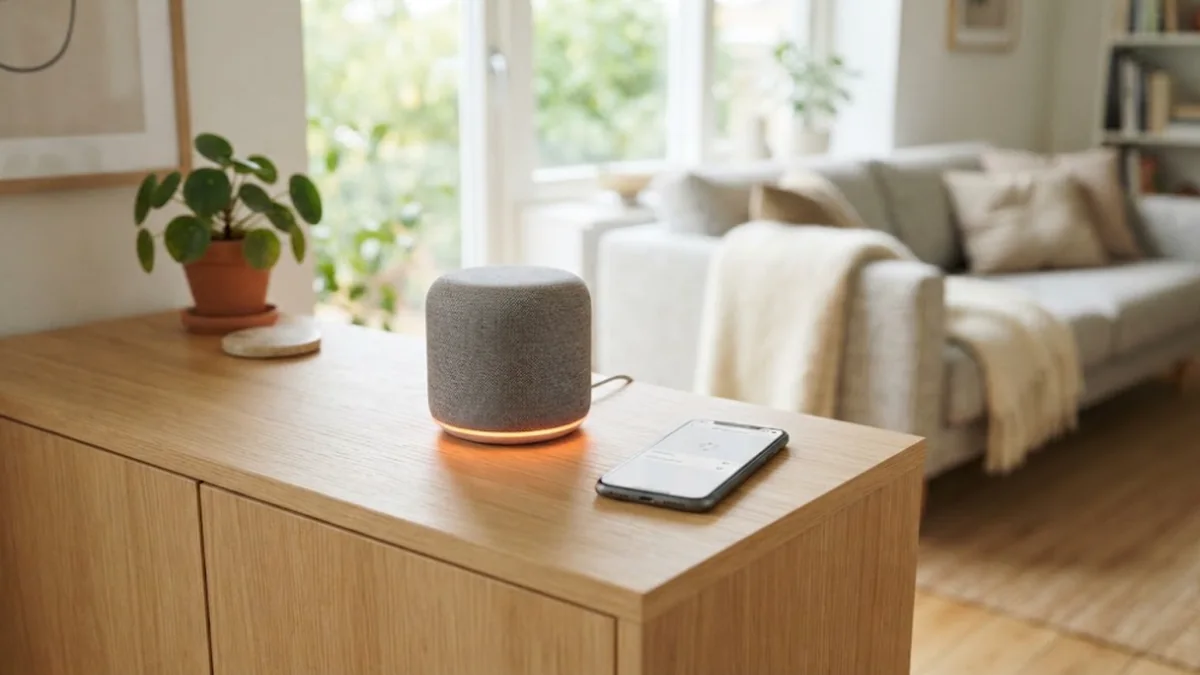
Table of Contents
- What You Need Before You Start
- How to Connect Alexa to WiFi for the First Time
- How to Change Wi-Fi on an Echo Speaker
- How to Connect Echo Show to Wi-Fi
- Connecting Alexa to a Phone Hotspot or Hotel Wi-Fi
- Alexa Light Ring Colors Explained
- Alexa Not Connecting to Wi-Fi? Try These Fixes
- How to Reset Alexa When Nothing Else Works
- Tips for a Stable Alexa Connection
- Moving House? How to Move Your Echo Devices to New Wi-Fi
- Saving Wi-Fi Passwords to Amazon
- Router Settings That Help Alexa Stay Connected
- How to Check Which Network Your Echo Is Using
- Frequently Asked Questions
- Final Thoughts
What You Need Before You Start
Before you open the app, gather a few things. It saves a lot of back and forth:
- Your Wi-Fi network name and password. Passwords are case sensitive, so check capital letters.
- The Amazon Alexa app on a phone or tablet, signed in to the same Amazon account the Echo is (or will be) registered to.
- Your phone’s Bluetooth and location turned on. The app uses them to find Echo devices in setup mode.
- The Echo plugged in with its original power adapter. Low power adapters cause random restarts.
- A supported network. Amazon says Echo devices work with dual band (2.4 GHz and 5 GHz) networks using the 802.11a/b/g/n standard. They cannot join ad hoc or peer to peer networks.
How to Connect Alexa to WiFi for the First Time
A brand new or freshly reset Echo starts in setup mode, shown by an orange light ring. Here is how to get it online:
- Plug in the Echo and wait for the orange light.
- Open the Alexa app and tap Devices, then the + icon, then Add Device.
- Choose Amazon Echo and pick your model (Echo, Echo Dot, Echo Pop and so on).
- Wait for the app to find the device. Many newer Echos are found automatically over Bluetooth.
- Select your Wi-Fi network and enter the password. If you saved your password to Amazon before, the app may fill it in for you.
- Finish the setup steps, such as choosing the device location and language.
When the light ring turns off, Alexa is connected. Say “Alexa, what’s the weather?” to test it.

How to Change Wi-Fi on an Echo Speaker
If your Echo was already set up and you have a new router or a new password, you do not need to start over. Amazon’s Wi-Fi settings help page lists these steps:
- Open the Alexa app.
- Tap Devices and select your Echo.
- Tap Device Settings.
- Select Change or remove a Wi-Fi network.
- Pick a network you have used before, or select Join another Wi-Fi Network.
- Follow the prompts in the app. The Echo may switch to setup mode for a moment while it connects.
If the app cannot find your Echo
Put the device in setup mode manually. On most current Echo speakers, press and hold the Action button (the dot button) for about five to six seconds until the light ring turns orange. Then go back to the app and try again.
How to Connect Echo Show to Wi-Fi
Echo devices with a screen handle Wi-Fi on the device itself, which is often easier. According to Amazon’s Echo Show Wi-Fi guide:
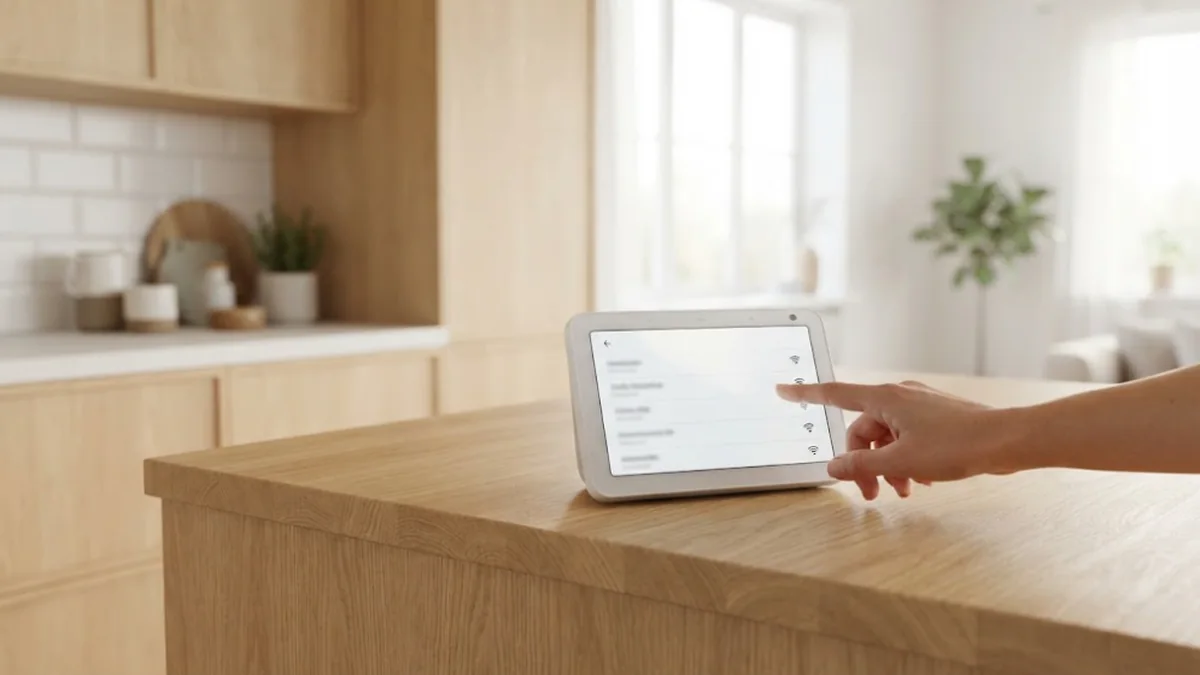
- Say “Go to Settings”, or open settings on the screen. With the original Alexa, swipe down from the top and tap Settings. With Alexa+, tap the Menu icon, then Settings.
- Select Device Options, then Network.
- Make sure the Wi-Fi toggle is on.
- Pick your network and enter the password.
If your network does not appear, tap refresh or look under Preferences for advanced options, such as joining a hidden network.
Connecting Alexa to a Phone Hotspot or Hotel Wi-Fi
Taking an Echo on a trip is tempting, but networks outside the home can be tricky:
- Phone hotspot. This usually works well. Turn on the hotspot, then connect the Echo to it the same way you would any network. Keep in mind that streaming music uses your mobile data.
- Hotel, campus or café Wi-Fi. Networks that make you accept terms on a web page (captive portals) do not work well with Echo devices, because the Echo has no browser to complete the sign in. A travel router or your phone’s hotspot is the simpler choice.
Alexa Light Ring Colors Explained
The light ring tells you what is going on during setup. These meanings come from Amazon’s Echo light color guide:
| Light | Meaning |
|---|---|
| Orange, spinning | Setup mode or connecting to Wi-Fi |
| Blue with cyan | Alexa is starting up, listening or processing |
| Violet | Do Not Disturb is on, or a Wi-Fi problem during setup |
| Red | Microphone is turned off |
| Yellow, pulsing | You have a notification or reminder waiting |
| Off | Ready and connected |
If the light stays violet or the app shows an error, double check your password and move the Echo closer to the router.
Alexa Not Connecting to Wi-Fi? Try These Fixes
Work through these quick checks before resetting anything:
- Restart the Echo. Unplug it for 10 seconds, then plug it back in.
- Restart your router and modem. Unplug both for 30 seconds.
- Check the password. Typos and wrong capital letters are the most common cause of failed connections.
- Move the Echo closer to the router, away from microwaves, cordless phone bases and thick walls.
- Separate band names if needed. If the Echo struggles on a combined network, give your 2.4 GHz and 5 GHz bands different names in your router settings and connect the Echo to the 2.4 GHz band.
- Update the Alexa app on your phone.
- Check how many devices are on your network. Busy networks with dozens of smart devices can slow things down; a mesh system usually helps.
Our home network setup guide covers router placement and mesh Wi-Fi in more detail, and our guide on how to secure your home Wi-Fi network explains why a strong password and WPA2 or WPA3 security still matter.
How to Reset Alexa When Nothing Else Works
A reset puts the Echo back into setup mode so you can connect it to Wi-Fi from scratch. Amazon’s Echo Dot reset guide gives two options for the 2nd through 5th generation Echo Dot:
- Reset and keep smart home connections: Press and hold the Action button for 20 seconds. Wait for the light ring to turn off and on again. The device enters setup mode.
- Full factory reset: Press and hold Volume down and Microphone off together for 20 seconds. Wait for the light ring to turn off and on again. This erases your personal settings and smart home connections.
On an Echo Show, say “Go to Settings,” then open Device Options and choose Reset to Factory Defaults. You can also reset or deregister any Echo from the Alexa app.
Most other Echo speakers use the same button combinations, but check the help page for your exact model, since older first generation devices use a small reset hole instead.
After a factory reset you will need to set up smart home devices again, including smart plugs and lights. If you use plugs around the house, our guide to what a smart plug is is a quick refresher.
Tips for a Stable Alexa Connection
- Give your Echo a good spot. Avoid metal shelves, cabinets and corners behind the TV.
- Use the original power adapter. Underpowered adapters cause disconnects that look like Wi-Fi problems.
- Keep the router firmware updated. Many connection bugs are fixed in router updates.
- Use a mesh system in larger homes. One router rarely covers two floors well.
- Think about the bigger setup. If you are building a whole smart home around Alexa, see our guides to the best smart speakers, the best smart displays and the best thermostats for Alexa.
Moving House? How to Move Your Echo Devices to New Wi-Fi
When you move, every Echo needs to learn the new network. Doing it in the right order saves time:
- Set up the new router first and decide on a Wi-Fi name and password. If you can, reuse your old Wi-Fi name and password. Many Echo devices will then reconnect on their own.
- Plug in one Echo and open the Alexa app. Go to Devices, choose Echo & Alexa, pick the device and tap Change next to the Wi-Fi network.
- Repeat for the other Echo devices. If you saved your password to Amazon (see below), it will usually fill in automatically.
- Check smart home devices. Smart plugs, bulbs and cameras connected over Wi-Fi also need the new network, usually in their own apps. Devices connected through an Echo’s built-in Zigbee or Matter hub may reconnect on their own once the Echo is back online.
- Update your address and time zone in the Alexa app so weather, traffic and routines use the right location.
Saving Wi-Fi Passwords to Amazon
During setup, the Alexa app offers to save your Wi-Fi password to Amazon. If you agree, new Echo devices and some other compatible devices can connect to that network without you typing the password again. It is handy in homes with many devices.
A few points worth knowing:
- The saved password is used for setting up your own compatible devices. You can delete saved Wi-Fi passwords at any time from the Content and Devices section of your Amazon account.
- If you change your Wi-Fi password, update or remove the old saved one so new devices don’t keep trying the wrong password.
- If you’d rather not store it, simply decline during setup and type the password each time.
Either way, use a strong, unique Wi-Fi password. Our guide on securing your home Wi-Fi network covers passwords, guest networks and router updates.
Router Settings That Help Alexa Stay Connected
Most Echo connection problems are really router problems. These settings often fix drop-outs for good:

- Band steering: modern Echo devices support both 2.4 GHz and 5 GHz. If an Echo keeps dropping, try connecting it to a dedicated 2.4 GHz network, which reaches further through walls.
- Security mode: if a router is set to WPA3-only, some older Echo models may refuse to connect. A WPA2/WPA3 mixed mode usually works for every device.
- Too many devices: smart homes can quickly add 30 or more Wi-Fi devices. Older routers may struggle; a mesh Wi-Fi system spreads the load and covers the whole house.
- Firmware updates: update the router’s firmware. Fixes for connection bugs are common.
- Placement: keep Echo devices away from microwaves, cordless phone bases and thick walls, and don’t hide the router in a cupboard.
If you are thinking about cutting down on Wi-Fi devices altogether, our comparison of Matter vs Wi-Fi for smart homes explains how Thread and Matter devices reduce the load on your router.
How to Check Which Network Your Echo Is Using
Before you change anything, confirm what the Echo is connected to. In the Alexa app, open Devices, then Echo & Alexa, pick the device and scroll to Wi-Fi Network. On an Echo Show, swipe down from the top of the screen, open Settings, then Network to see the network name and signal. If the network shown is an old one, or a neighbour’s open network, reconnect it to your own Wi-Fi.
Frequently Asked Questions
Can Alexa connect to Wi-Fi without the app?
Echo Show and other screen devices can connect directly from their own settings. Echo speakers without a screen need the Alexa app to join a network.
Why does my Echo say it cannot connect to the internet when my Wi-Fi works?
The Echo may be too far from the router, connected to a busy band, or holding an old password. Restart the Echo and router, then use Change or remove a Wi-Fi network in the app to reconnect.
Does Alexa work on 5 GHz Wi-Fi?
Yes. Amazon says Echo devices support dual band 2.4 GHz and 5 GHz networks. The 2.4 GHz band reaches further, so it can be more reliable for Echos placed far from the router.
How do I connect Alexa to a new Wi-Fi network without resetting it?
Open the Alexa app, go to Devices, choose your Echo, tap Device Settings, then Change or remove a Wi-Fi network. You do not need to reset the device.
Will resetting Alexa delete my routines?
Routines are saved to your Amazon account, not the device, so they usually stay. A full factory reset does remove the device’s smart home connections, which you may need to add again.
Why is my Alexa light ring orange?
Orange means the Echo is in setup mode or trying to connect to Wi-Fi. Finish setup in the Alexa app, or reconnect it to your network.
Do I need to reconnect all my Echo devices after changing my router?
Only if the Wi-Fi name or password changed. If you set the new router up with exactly the same network name and password, most Echo devices reconnect automatically after a restart.
Can I control Alexa devices from the app when they are offline?
No. An offline Echo can’t receive commands from the app or respond to voice requests that need the internet. Fix the Wi-Fi connection first, then check that the device shows as online.
Why does my Echo connect but Alexa still says she’s having trouble?
The Echo may be on Wi-Fi but the router has no internet connection, or a DNS or firewall setting is blocking Amazon’s servers. Test the internet on another device on the same network, restart the router, and turn off any strict ad-blocking or parental filters briefly to see if they are the cause.
Can an Echo Dot connect to Wi-Fi without the Alexa app?
No. Echo speakers without a screen need the Alexa app for Wi-Fi setup. Echo Show devices can join a network directly from the on-screen settings.
Final Thoughts
Once you know how to connect Alexa to WiFi, switching routers or moving an Echo takes about two minutes. Use the Alexa app for speakers, use the on-screen settings for an Echo Show, and keep a reset in your back pocket for stubborn cases. With a solid connection in place, Alexa can do what it does best: answer questions, play music and control the rest of your smart home without a hub.