
A Honeywell thermostat reset fixes more problems than most people expect. A frozen screen, a schedule that keeps jumping around, a thermostat that will not reconnect to your new router, or settings left behind by the previous homeowner can all be cleared in a minute or two once you know the right button sequence.
The tricky part is that Honeywell Home (now made by Resideo) has used many different reset methods over the years. A T6 Pro resets through a menu, a FocusPro 6000 uses a pair of number codes, and a basic RTH model may only need its batteries pulled. This guide shows you how to reset Honeywell thermostat models of every common type, explains the difference between a soft reset and a factory reset, and covers what to do afterwards so your heating and cooling work properly again.
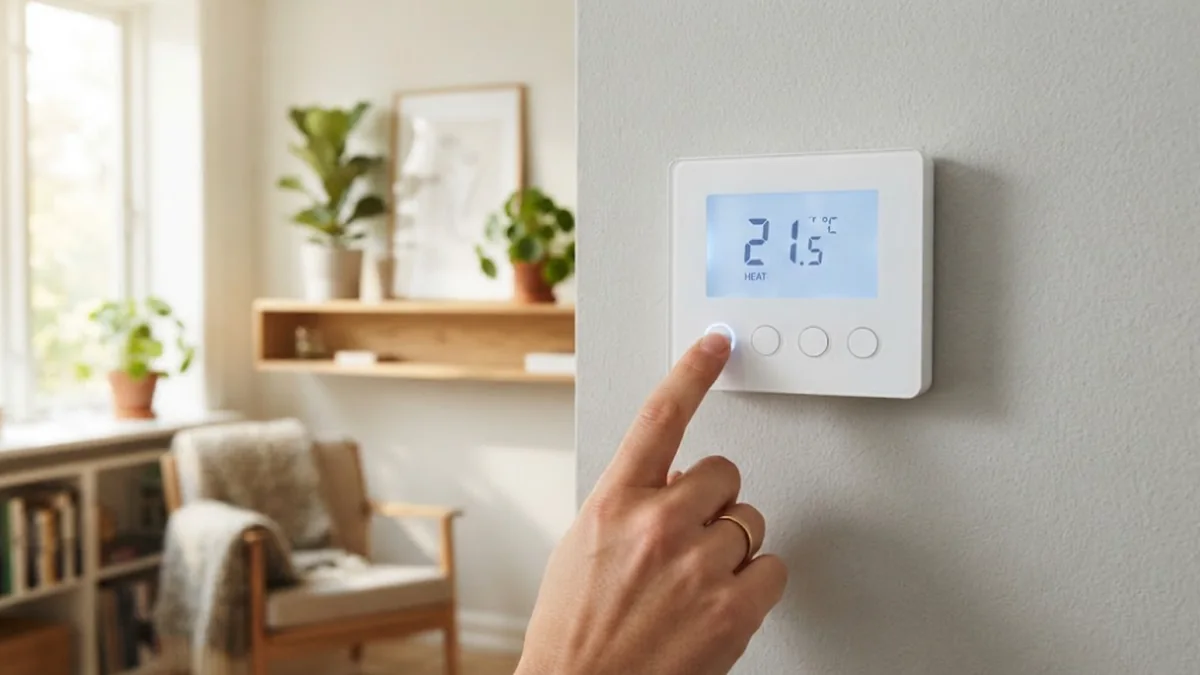
Table of Contents
- Before You Reset: Which Reset Do You Need?
- How to Find Your Honeywell Thermostat Model
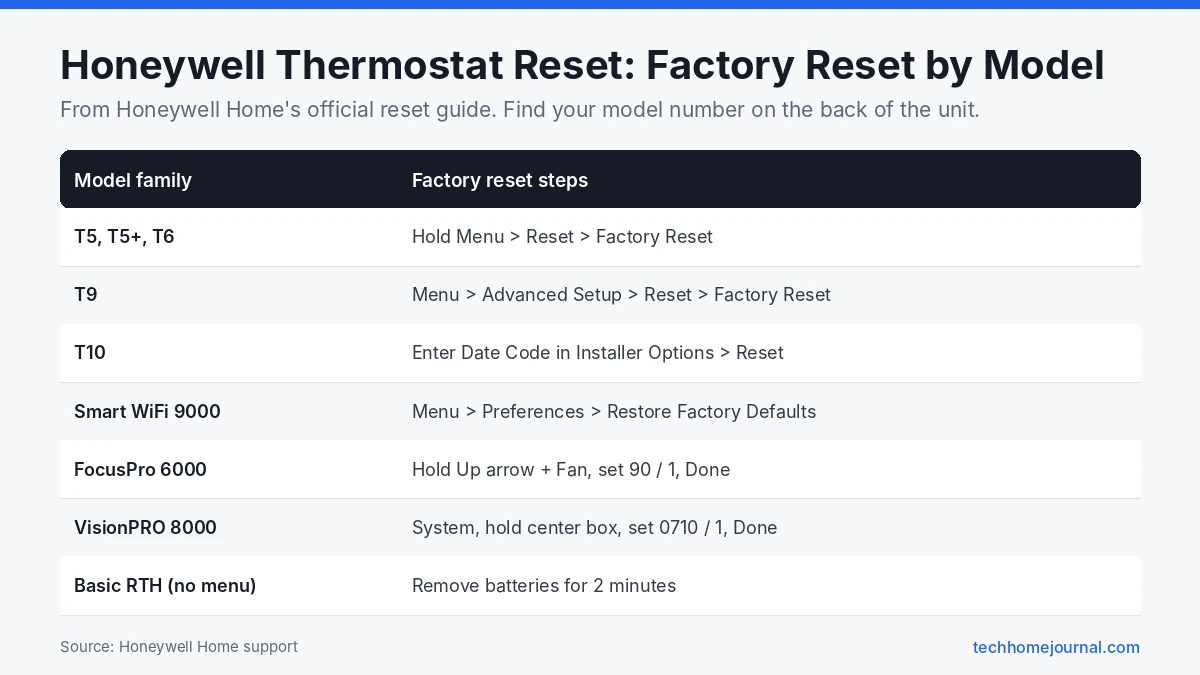
- Honeywell Thermostat Reset for T5, T5+ and T6 Models
- Resetting the T9 and T10
- Resetting Smart WiFi 9000 and VisionPRO Models
- Resetting the FocusPro 6000 Wi-Fi
- How to Reset a Honeywell Thermostat With No Reset Button
- What to Do After a Factory Reset
- When a Reset Does Not Fix the Problem
- Restart, Wi-Fi Reset or Factory Reset: Which One?
- How to Reconnect a Honeywell Thermostat to New Wi-Fi
- How to Prevent Future Thermostat Problems
- Frequently Asked Questions
- Final Thoughts
Before You Reset: Which Reset Do You Need?
Not every problem needs a full factory reset. Honeywell thermostats usually offer four kinds of reset, and picking the right one saves you from reprogramming everything:
| Reset type | What it clears | Use it when |
|---|---|---|
| Power cycle (soft reset) | Nothing; it just restarts | Screen frozen, buttons not responding |
| Schedule reset | Your heating and cooling schedule | Schedule is a mess and you want to start over |
| Wi-Fi reset | Saved network details | New router, new Wi-Fi password, offline in the app |
| Factory reset | Every setting, schedule and network | Moving house, selling, or nothing else works |
A factory reset also wipes the installer settings on many models, such as the system type (gas furnace, heat pump, electric heat) and the number of heating or cooling stages. Before you start, take a photo of the installer settings screen if you can reach it, and write down your model number. You will find the model number on the back of the faceplate or under Menu, then Thermostat Information.
How to Find Your Honeywell Thermostat Model
Gently pull the thermostat body straight off its wall plate. Most units unclip with a firm tug, no screws needed. The model number is printed on the back and usually starts with letters such as TH, RTH or RCHT. For example:
- T5 and T6 smart models: RCHT8610WF, RCHT8612WF, TH6220WF2, TH6320WF2
- T9 and T10: RCHT9510WF, RCHT9610WF, THX321WF
- Smart WiFi 9000: RTH9580WF, RTH9585WF, TH9320WF
- FocusPro 6000 Wi-Fi: RTH6580WF, TH6320WF1
- VisionPRO 8000: RTH8580WF, TH8320WF, TH8321WF
- T4 Pro and basic programmable models: TH4110U2005, RTH2300, RTH221
Once you know which family you have, jump to the matching section below. The steps come from Honeywell Home’s official device reset guide.
Honeywell Thermostat Reset for T5, T5+ and T6 Models
The T5 and T6 family is one of the most popular Honeywell lines, and the reset is simple:
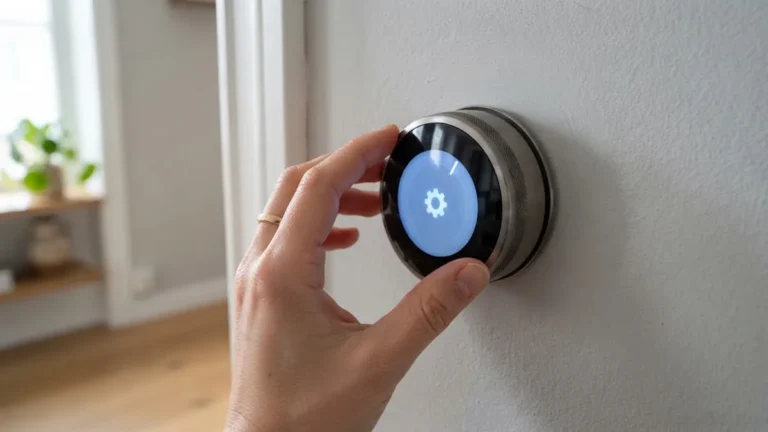
- Press and hold Menu for about five seconds until the advanced options appear.
- Scroll to Reset.
- Choose Factory Reset, WiFi, Schedule or HomeKit Reset, depending on what you need.
- Confirm. The thermostat restarts and walks you through setup again.
After a factory reset you will need to add the thermostat back to the Resideo app (formerly Honeywell Home app). Keep your Wi-Fi password handy.
Resetting the T9 and T10
T9 (RCHT9510WF, RCHT9610WF)
- Tap Menu, then Advanced Setup.
- Select Reset.
- Choose Factory Reset, Schedule Reset or HomeKit Reset.
To change only the network, go to Menu, then WiFi, then Change Network, and pick your new network.
T10 (THX321WF)
The T10 protects its reset menu with a date code, so nobody can wipe it by accident:
- Go to Menu, then Thermostat Information, and note the Date Code.
- Go back and open Installer Options.
- Enter the date code when asked for a password.
- Select Reset and choose the reset type.
Resetting Smart WiFi 9000 and VisionPRO Models
Smart WiFi 9000 (RTH9580WF, RTH9585WF, TH9320WF)
This touchscreen model has a friendly menu:
- Tap Menu, then Preferences.
- Tap Restore Factory Defaults.
- Tap Yes to confirm.
For Wi-Fi only, tap Menu and then WiFi Setup.
VisionPRO 8000 (TH8320WF, RTH8580WF)
- Press System.
- Press and hold the blank box in the center of the screen until the installer menu appears.
- Set the left number to 0710 and the right number to 1 for a factory reset.
- Press Done.
For a Wi-Fi reset, use 0900 on the left and 0 on the right. For a schedule reset, use 0165 and 1.
VisionPRO TH8321WF
Go to Menu, then Dealer Information, scroll down and note the date code. Press Done, open Installer Options, enter the date code, then choose Reset to Defaults and confirm with Yes.
Resetting the FocusPro 6000 Wi-Fi
The FocusPro 6000 (RTH6580WF and TH6320WF1) uses a button combination and a pair of codes:
- Press and hold the up arrow and Fan buttons together until the code screen appears.
- For a factory reset, set the left number to 90 and the right number to 1.
- Press Done.
Use 39 and 0 to reset only the Wi-Fi, or 85 and 1 to restore the default schedule. Many owners search for this model specifically because the codes are not printed anywhere on the unit.
How to Reset a Honeywell Thermostat With No Reset Button
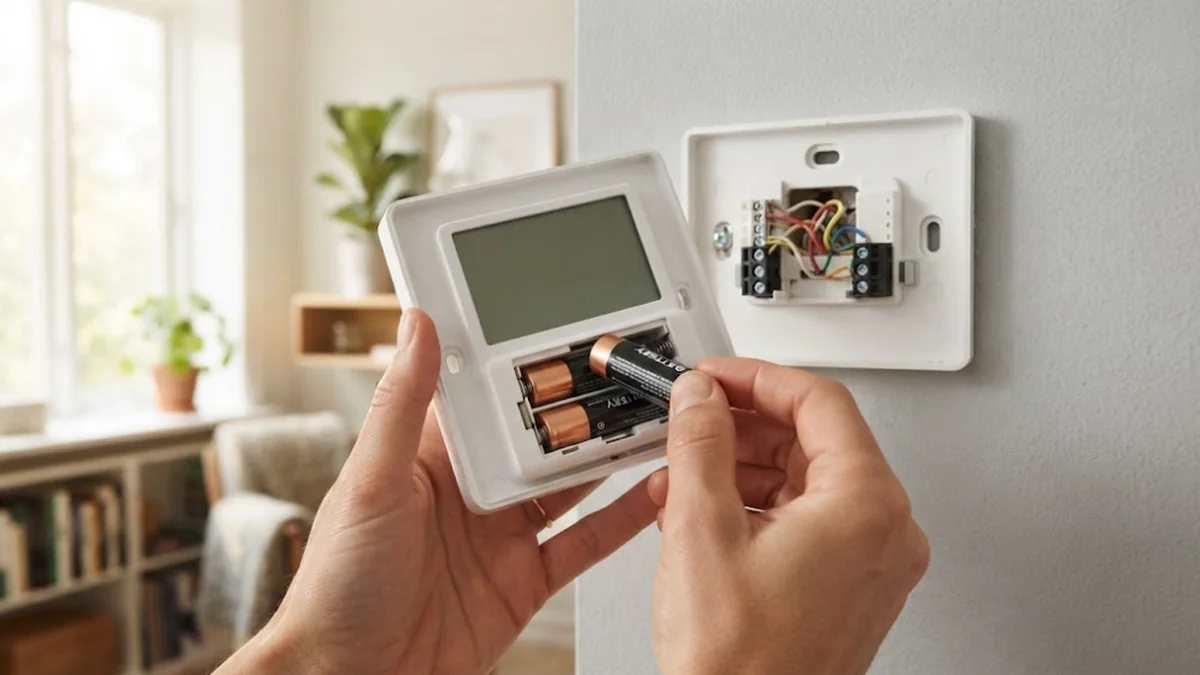
Older programmable and non-programmable Honeywell models, such as the RTH2300 and RTH221, have no reset menu at all. You can still restart them:
- Switch the thermostat to Off.
- Pull the thermostat off the wall plate or open the battery door.
- Remove the batteries for about two minutes. Some owners briefly insert them the wrong way round for five seconds to fully drain the circuit; if you try this, put them back correctly right away.
- Fit fresh AA or AAA alkaline batteries (check the battery compartment for the type).
- Reinstall the thermostat and set the time, day and temperature again.
For hardwired models that do not use batteries, turn off the breaker for the HVAC system for about five minutes, then turn it back on.
T4 Pro and other Pro models
The T4 Pro (TH4110U2005) keeps its system settings in the installer setup menu. To get there, press and hold Menu and + for about five seconds, then press Select to open System Setup, as described in Honeywell’s installer setup guide. Check your installation manual for the reset option before changing any numbered settings, because a wrong value here can stop your heating or cooling from working.
What to Do After a Factory Reset
A reset gives you a clean start, but you need to set a few things up again:
- Confirm the system type. Make sure the thermostat knows whether you have a conventional furnace, a boiler or a heat pump. A heat pump set up as a conventional system will heat poorly or not at all.
- Set the date and time. Schedules rely on the clock.
- Rebuild your schedule. The US Department of Energy notes that turning your thermostat back 7 to 10 degrees for 8 hours a day can save up to about 10 percent a year on heating and cooling.
- Reconnect to Wi-Fi and the app. Open the Resideo app, add a device and follow the prompts.
- Test heat, cool and fan. Raise and lower the set point a few degrees and listen for the system to start.
If your HVAC equipment does not respond after a reset, the installer settings may not match your system. Our smart thermostat installation guide explains the common wiring and setup terms, and our article on smart thermostats without a C wire helps if the screen keeps going blank.
When a Reset Does Not Fix the Problem
Sometimes a Honeywell thermostat reset is not enough. Watch for these signs:
- Blank screen after new batteries. Check the breaker and the furnace door switch, since many Honeywell models also draw power from the HVAC system.
- Wi-Fi keeps dropping. Your router may be too far away or using a 5 GHz only network. Most Honeywell Wi-Fi thermostats need 2.4 GHz. Our home network setup guide covers how to fix weak spots.
- “Wait” or a flashing snowflake. This is normal compressor protection that can last up to five minutes. It is not a fault.
- Wrong temperature reading. The thermostat may be in direct sun or above a heat source. Moving it a few feet often solves this.
If none of this helps, contact Honeywell Home support or a licensed HVAC technician. If your thermostat is very old, it may be the right time to upgrade. Our list of the best smart thermostats and our budget smart thermostat picks are good places to start.
Restart, Wi-Fi Reset or Factory Reset: Which One?
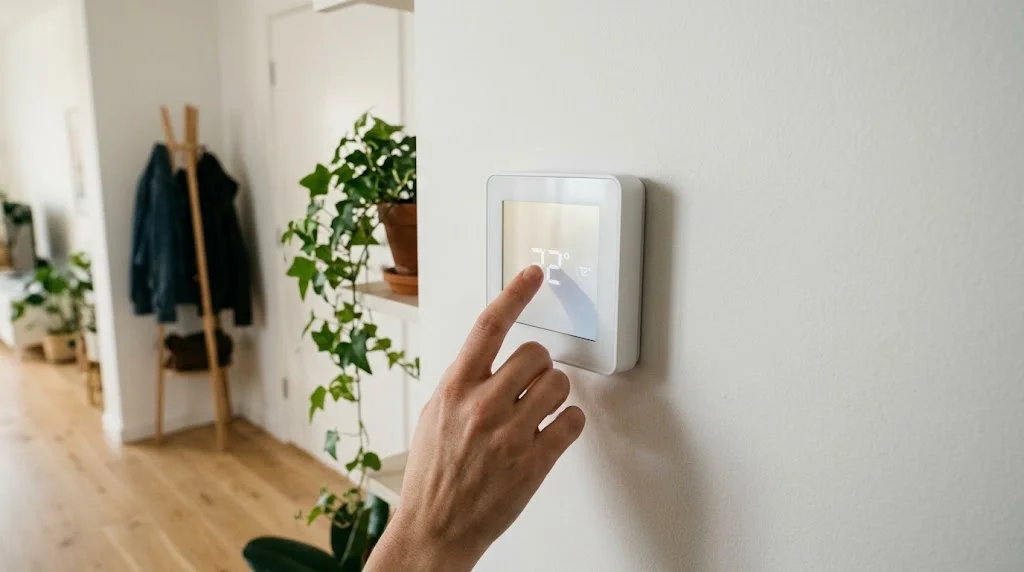
Honeywell thermostats offer several kinds of “reset”, and picking the lightest one that fixes the problem saves you from re-entering every setting. Use this table as a quick guide:
| Problem | Try first | What you keep |
|---|---|---|
| Frozen or blank screen, slow buttons | Restart (power cycle or new batteries) | All settings and schedules |
| New router, new Wi-Fi password or name | Wi-Fi reset / reconnect | Schedules and system settings |
| Schedule acting strangely | Schedule reset | System settings and Wi-Fi |
| Selling the house or moving the thermostat | Factory reset | Nothing, back to defaults |
| Heating or cooling not running after wiring work | Check installer settings, then factory reset if needed | Depends on the step |
A factory reset also clears installer settings such as system type, heat pump options and number of stages. If those were set by a professional, write them down first or take photos of each installer setting screen.
How to Reconnect a Honeywell Thermostat to New Wi-Fi
Changing your router is the most common reason people search for a reset. In most cases you only need to reconnect the thermostat, not wipe it.
- Open the thermostat menu and look for Wi-Fi or Wi-Fi Setup. On T5, T6 and T9 models it is in the main menu; on older Wi-Fi 9000 and VisionPRO models it is under the Wi-Fi settings screen.
- Choose to reset or forget the current network. Some models then create a temporary hotspot so your phone can connect.
- Open the app your model uses. Newer models use the Honeywell Home app (now part of Resideo), while some older models use Total Connect Comfort.
- Follow the app’s steps to add or reconnect the device and enter the new Wi-Fi name and password.
- Check the thermostat shows as online in the app and test a temperature change from your phone.
Honeywell Wi-Fi thermostats use the 2.4 GHz band. If your new router combines 2.4 and 5 GHz under one name and the thermostat won’t connect, temporarily turn on a separate 2.4 GHz network for setup. Resideo’s official support site has model-specific manuals if a menu looks different on your unit.
How to Prevent Future Thermostat Problems
Most thermostat glitches come from a handful of causes. A few habits keep you from needing another reset:
- Replace batteries once a year on battery-backed models, even if the low-battery warning hasn’t appeared. Weak batteries cause random restarts.
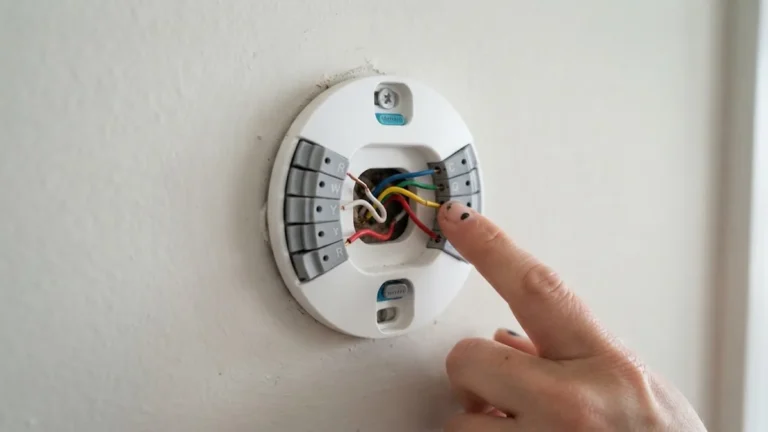
- Use a C wire for Wi-Fi models where possible. Power stealing without a C wire can cause dropped connections and blank screens. Our guide to smart thermostats without a C wire explains the options.
- Keep the thermostat online so firmware updates install automatically.
- Avoid drafts and heat sources. Sun, lamps or a kitchen nearby make the thermostat read the wrong temperature, which looks like a fault but isn’t.
- Service the HVAC system once a year. Dirty filters and blocked condensate lines often trigger shutdowns that people blame on the thermostat.
Frequently Asked Questions
Will a factory reset delete my Honeywell thermostat schedule?
Yes. A factory reset clears your schedule, Wi-Fi details and preferences. If you only want a fresh schedule, use the Schedule reset or Restore Default Schedule option instead.
How do I reset my Honeywell thermostat to factory settings without the app?
Every method in this guide works from the thermostat itself. The app is only needed afterwards to reconnect a Wi-Fi model to your account.
How long should I leave the batteries out to reset a Honeywell thermostat?
About two minutes is usually enough for basic models. Use fresh alkaline batteries when you put it back together.
Why does my Honeywell thermostat say “Wait” after a reset?
Honeywell thermostats include compressor protection that delays cooling or heat pump operation for up to five minutes after a restart. Give it a few minutes and it will start on its own.
Do I need to reset my Honeywell thermostat after changing my router?
You only need a Wi-Fi reset, not a factory reset. Use the WiFi option in the reset menu or the Wi-Fi setup screen, then pick your new network.
Is a Honeywell thermostat reset safe for my HVAC system?
Yes. A Honeywell thermostat reset only changes the thermostat’s own memory; it does not touch the furnace, boiler or air conditioner. The one thing to watch is the installer setup afterwards. If the system type or stage settings no longer match your equipment, correct them before you rely on the thermostat again.
Can I reset a Honeywell thermostat for a new tenant or buyer?
Yes, and you should. Do a factory reset and remove the device from your Resideo account so the next person can register it under their own login.
Does resetting a Honeywell thermostat remove it from the app?
A factory reset usually removes the Wi-Fi connection, so the thermostat shows offline until you set it up again. Delete the old device in the app and add it again if it doesn’t reconnect on its own.
Why is my Honeywell thermostat still not working after a reset?
If the screen is blank after new batteries and a reset, check the HVAC breaker, the furnace door safety switch and the condensate float switch. A tripped switch cuts power to the thermostat. If the screen works but the system won’t run, the installer settings may not match your equipment, so call an HVAC technician.
How often should I reset my Honeywell thermostat?
Only when something is wrong. There is no need for routine resets. A yearly battery change and keeping the thermostat online for updates is enough maintenance for most homes.
Final Thoughts
A Honeywell thermostat reset takes a few minutes once you know which family your model belongs to. Start with a simple power cycle, use a Wi-Fi or schedule reset when that is all you need, and save the full factory reset for moving house or stubborn problems. Afterwards, check the system type, rebuild your schedule and reconnect the app, and your home should be comfortable again. For more ways to cut heating and cooling costs, read our guide to smart thermostat energy savings.